Practice 3
The following screenshot shows how to download and import the 2016 and 2021 Census data about the race and gender of judges in Canada https://abacus.library.ubc.ca/dataset.xhtml?persistentId=hdl:11272.1/AB2/PG2NB4. The dataset is retrieved from Abacus. Try follow the steps to import the data into your RStudio.
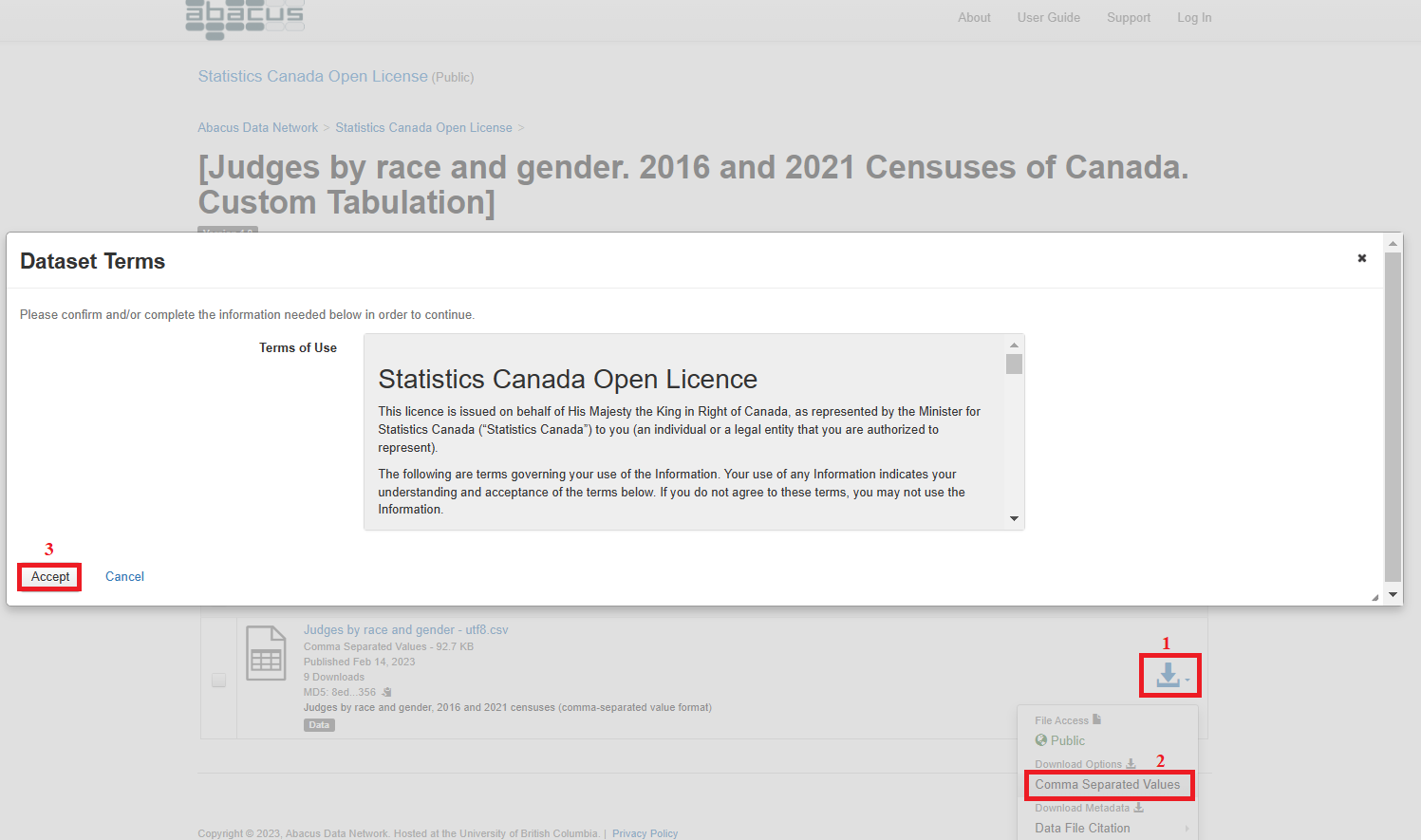 Figure 4. Download Data from Abacus
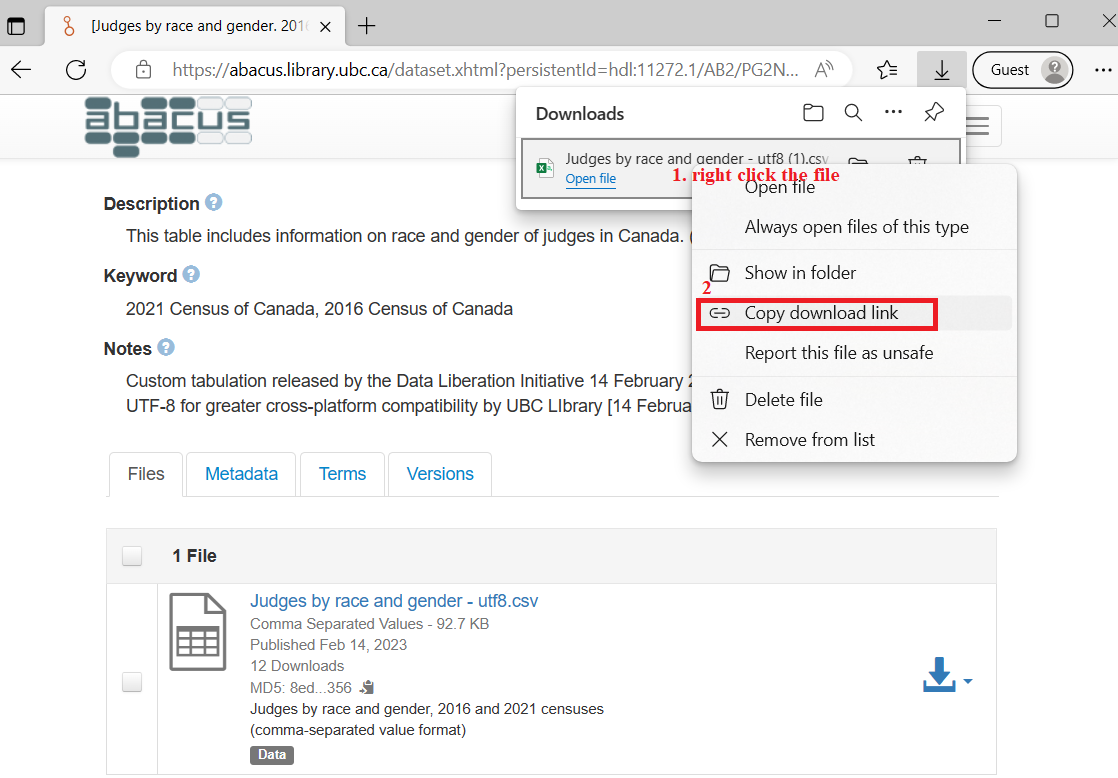 Figure 5. Find the Downloaded File and Copy Download Link
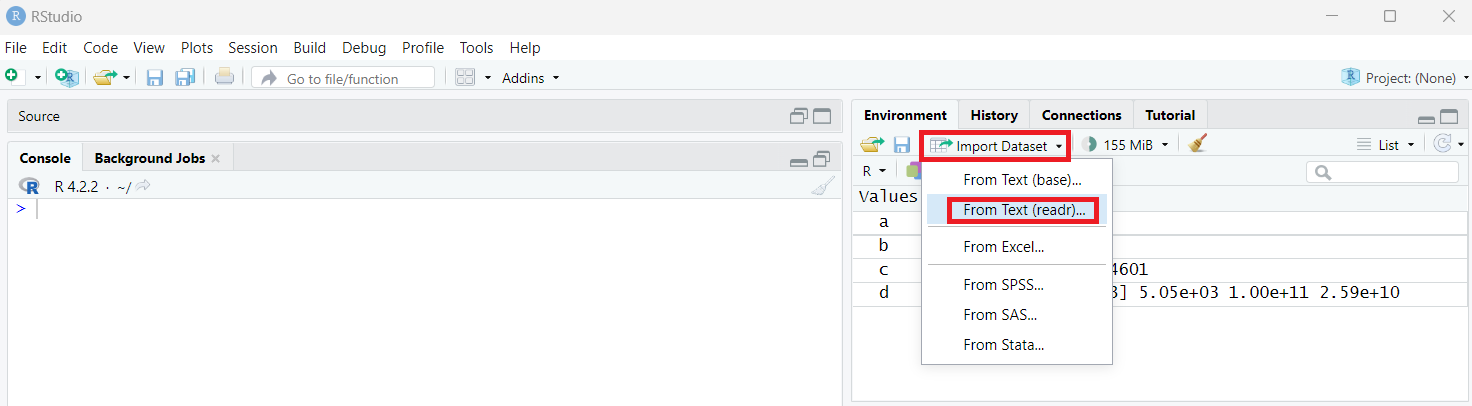 Figure 6. Import Dataset through Environment
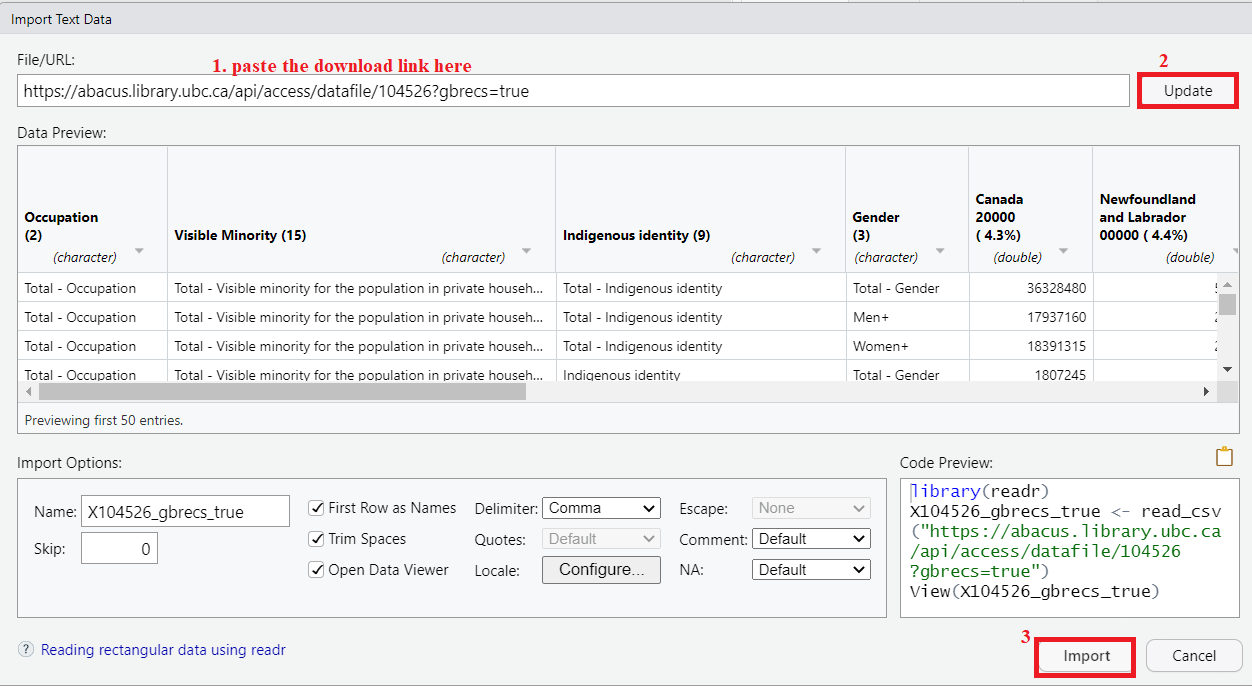 Figure 7. Import Dataset Option 1 Paste URL
 Figure 8. Import Dataset Option 2 Browse File
Working Directory
I copied the following code from the Code Preview section on the bottom right corner in Figure 7 when importing data by URL.
library(readr)
X104526_gbrecs_true <- read_csv("https://abacus.library.ubc.ca/api/access/datafile/104526?gbrecs=true")
View(X104526_gbrecs_true)
Using these code, others can easily import the target data in the URL, much easier than following the series of screenshots in practice 3. Such a nuance could also contribute to research transparency and reproducibility. Let’s paste these code to a script and save it for future use.
Note: on your own computer, if you set your working directory to where the .csv file is, you would use X104526_gbrecs_true <- read.csv(“filename.csv”). It’s best to keep the file name free from spaces and any characters that are not ”-“ or **“_”**.
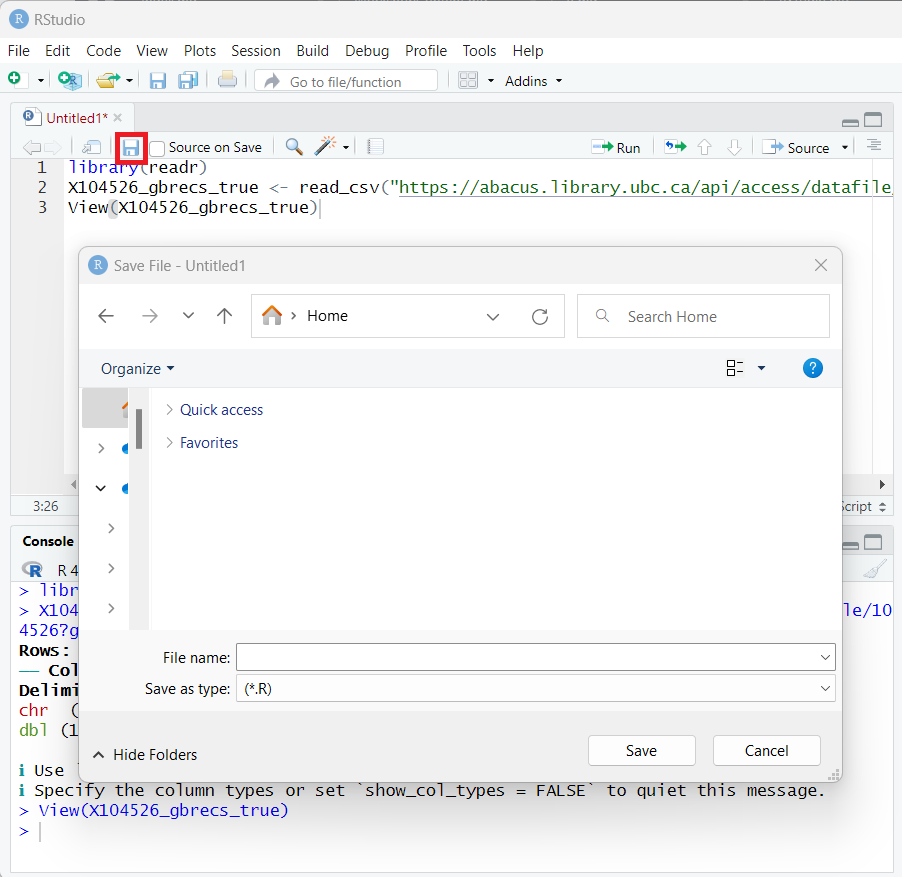 Figure 9. Save a Script
When you click the save button, a pop-out window will ask you to specify where to save the script. If we have several files to save, such as plots and datasets, we can avoid them from popping out repeatedly by setting the working directory. Working directory is a file path on your computer that sets the default location of any files you read into R, or save out of R. To set the working directory, you can go to the toolbar or use code.
 Figure 10. Set Working Directory
getwd() # Get working directory
setwd() # Set working directory
Loading last updated date...