This is the source that most of the following material is obtained from: https://www.zotero.org/support/
Getting started (Pre-workshop Tasks)
Register for a free account
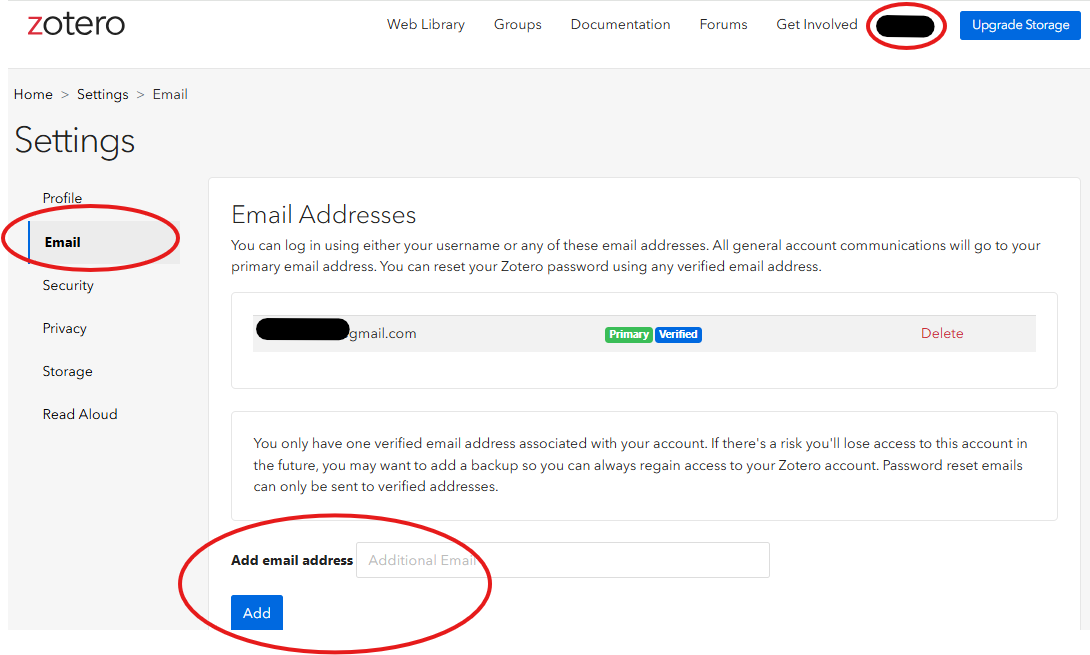
If you haven’t already created a Zotero account, please take a few moments to register for a free account here. It is recommended to use your personal email rather than your UBC email to create an account. The reason is that for some folks, you will eventually lose access to your UBC email and then it is hard to access your account. If you have already used ubc email to create an account, you can add your personal email as a backup. Password reset emails can only be sent to verified addresses on your Zotero account. To add backup email, go to your Zotero online account, click on your username and select settings. Then on the left pane select “Email” and add your backup email.
Installation instructions
Zotero Desktop app
Download and install the Zotero desktop app on the Zotero download page. The Zotero Desktop app is required when inserting and managing in-text citations and bibliographies in Microsoft Word. However, even without the desktop app, you can still log in to your Zotero online account to access and manage your online library. Your online library can be synchronized with the Zotero Desktop app whenever it is installed and connected.
Zotero Connector
You also need to install the Zotero Connector for your browser which is available for Chrome, Firefox, Edge, or Safari (The Zotero Connector for Safari is bundled with Zotero. You can enable it from the Extensions pane in the Safari settings).
Word Processor Plugins Installation
Zotero has available plugins for Microsoft Word, LibreOffice, and Google Docs which allow you to create dynamic bibliographies and insert an in-text citation in your manuscript.
The word processor plugins are bundled with Zotero Desktop App and should be installed automatically for each supported word processor on your computer when you first start Zotero. If you have just installed the Zotero Desktop App, it will usually appear the next time you open Microsoft Word. If it does not, close both the Zotero Desktop App and Microsoft Word, then restart your computer. In most cases, after restarting, the Zotero tab will appear in the Word ribbon and function correctly.
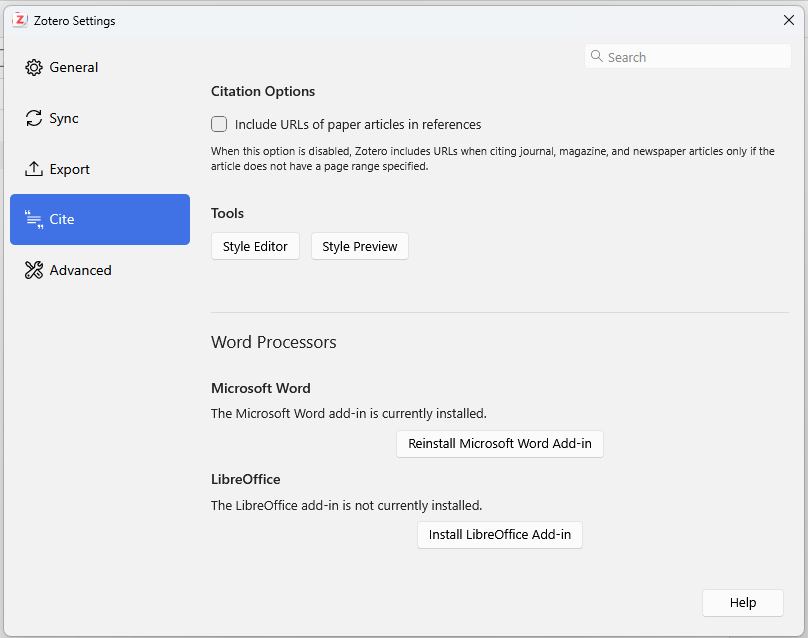
You can reinstall the plugins later from the Cite -> Word Processor Plugins pane of the Zotero preferences. If you’re having trouble, see Manually Installing the Zotero Word Processor Plugin or Word Processor Plugin Troubleshooting.
Optional Step: Zotero Mobile App
Optionally, you can also install the Zotero mobile app, available for both iOS and Android devices.
Syncing
While Zotero stores all data locally on your computer by default, Zotero’s sync functionality allows you to access your Zotero library on any computer with internet access. Zotero syncing has two parts: data syncing and file syncing.
Data Syncing#
Data syncing merges library items, notes, links, tags, etc. — everything except attachment files — between your local computer and the Zotero servers, allowing you to work with your data from any computer with Zotero installed and to view your library online on zotero.org. Data syncing is free and unlimited, and it can be used without file syncing.
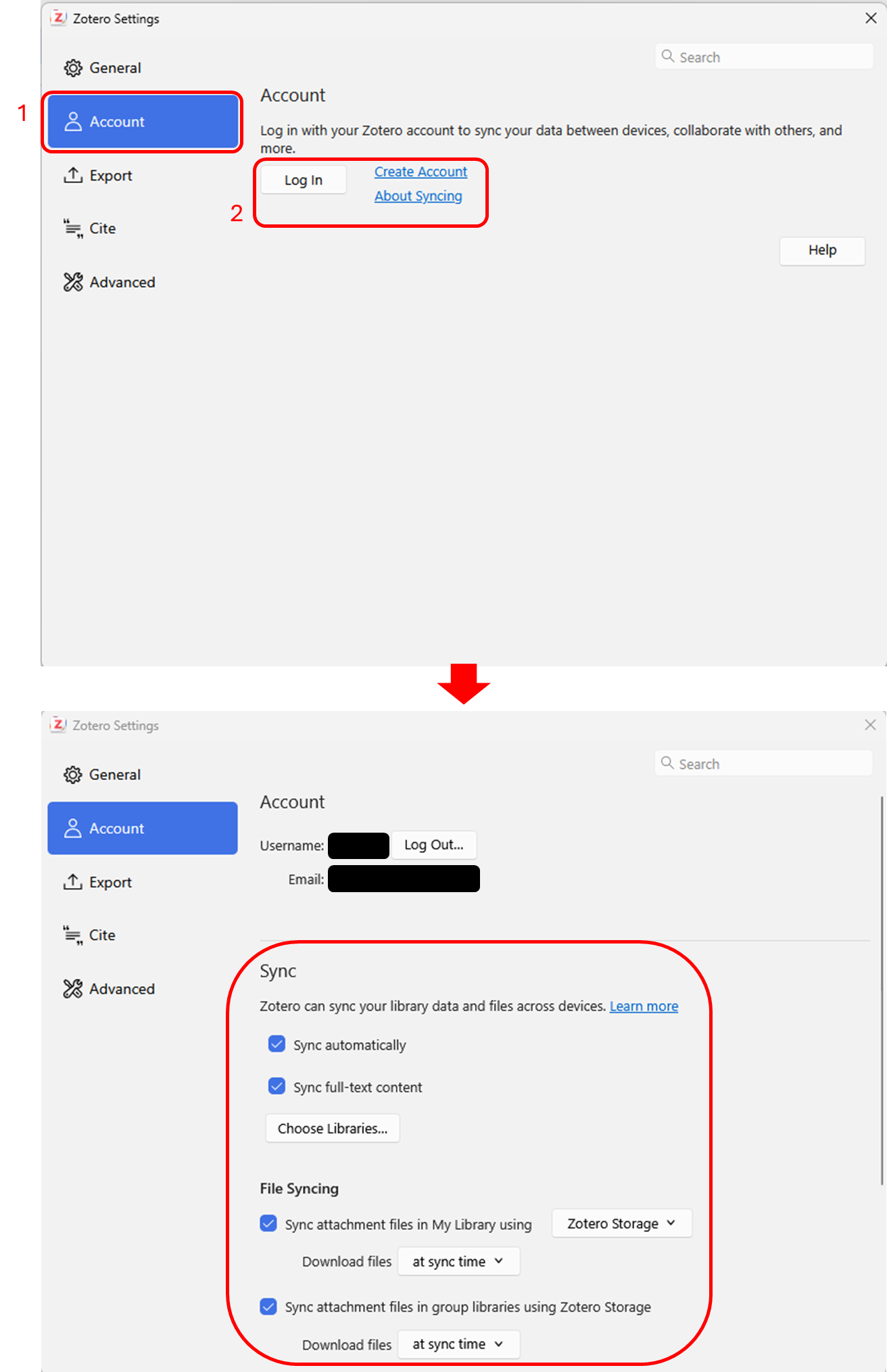
The first step to syncing your Zotero library is to login to your Zotero account (create an account if you don’t have it already). Then, open the Sync pane of the Zotero preferences and enter your login information in the Data Syncing section.
By default, Zotero will sync your local data with the Zotero servers whenever changes are made. To disable automatic syncing, uncheck the “Sync automatically” checkbox in this section. You can sync manually at any time by clicking the “Sync with zotero.org” button ( ) on the top right-hand side of the Zotero toolbar.
When Zotero syncs, it automatically applies changes in both directions — any changes you make in one place will be applied to all other synced computers. If an item has changed in multiple places in conflicting ways between syncs, you’ll receive a conflict resolution dialog asking which version you’d like to keep. If you find yourself using a new computer, you can simply set up syncing and Zotero will automatically download all data from your online library.
File Syncing#
Data syncing syncs library items, but doesn’t sync attached files (PDFs, audio and video files, images, etc.). To sync these files, you can set up file syncing to accompany data syncing, using either Zotero Storage or WebDAV.
Zotero Storage#
Zotero Storage is the recommended file sync option. It has several advantages over WebDAV syncing, including syncing of files in group libraries, web-based access to PDFs and other attachments, easier setup, guaranteed compatibility, and improved upload performance for certain files. Each Zotero user is given 300 MB of free Zotero Storage for attached files, with larger storage plans available for purchase.
However, if you want to bypass the 300 MB free limit without paying for a premium plan, you can use linked attachments option (instead of stored files) or install a third-party plugin like ZotMoov. Instead of uploading PDFs to Zotero’s servers, this method automatically renames and moves your files into a local folder synced by your own cloud service (such as Google Drive, OneDrive, or Dropbox). Because Zotero only needs to sync lightweight text citations rather than bulky PDFs, you can expand your library indefinitely using the free storage you already own.
Adding Items to Your Zotero Library
This section describes the various ways to add items (including books, journal articles, web pages, etc.) as items in Zotero.
Using Zotero Connector via your web browser
For this you need to install the Zotero Connector for Chrome, Firefox, Edge, or Safari, in addition to the Zotero desktop app.
The Zotero Connector’s save button is the most convenient and reliable way to add items with high-quality bibliographic metadata to your Zotero library. As you browse the web, the Zotero Connector will automatically find bibliographic information on webpages you visit and allow you to add it to Zotero with a single click.
For example, if you’re on the main page for a journal article, the save button will change to the icon of a journal article (circled in red):

On a library catalog entry for a book, the save button will show a book icon:
<img src=”images/aaad326ebdfb8413cfbc16cb482c4142e4f34a16.png”
Loading last updated date...