Linux installation instructions
Anyone who has used Linux knows there are million ways to install anything. If you have a package manager installed (like apt) it’s probably easiest to use that. The names of the libraries and software are probably not standardized. So if you’re not sure of what to install, try something light apt search libspatialite.
1 Install DB Browser for SQLite, using your package manager or downloading from https://sqlitebrowser.org
2 Use the terminal to search for spatialite and librasterlite2
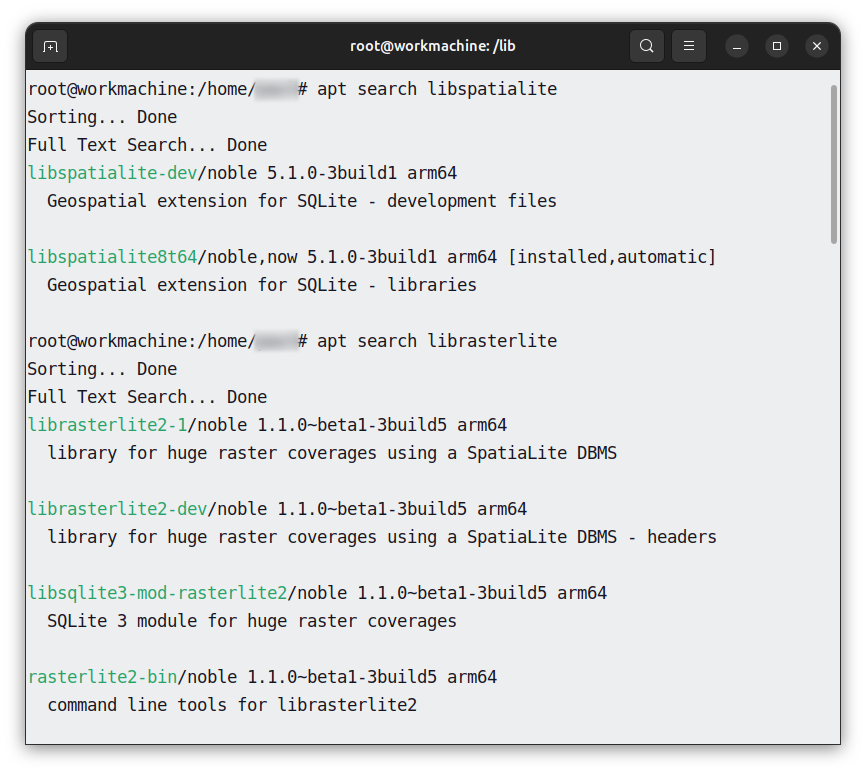
3 Install libspatialite and determine where it is. How to do this is left as an exercise for the reader.
3a Install proj as outlined in the installation instructions. If necessary, update PROJ_DATA and PROJ_LIB environment variables.
3b Optional raster support. Install librasterlite2
4 Add extensions. In DB Browser for SQLite, go to Preferences/Extensions. Under Select extensions to load for every database, select the puzzle piece with the plus symbol (the top icon).
You will need to navigate to mod_spatialite.so (or some variant of this). These files are usually installed somewhere in /lib.
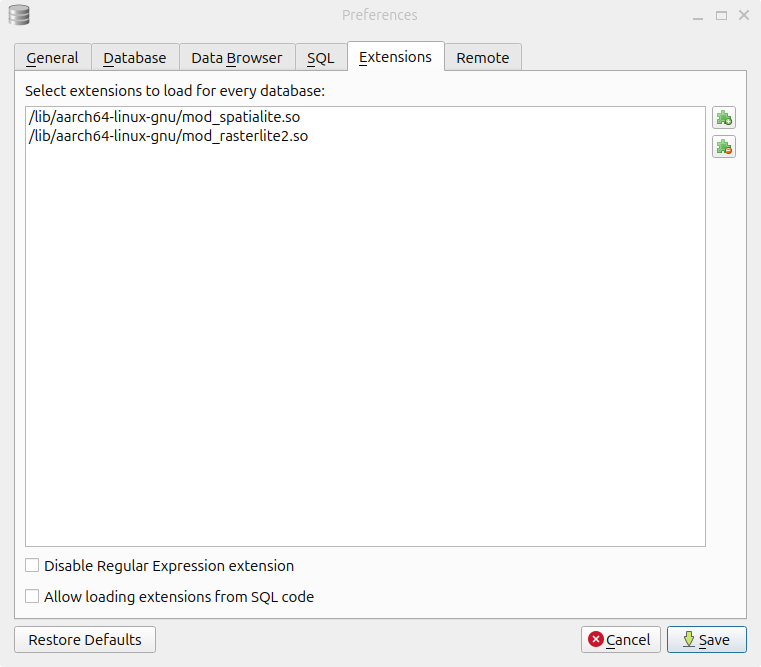
For rasterlite support, do the same thing with the rasterlite file, which will (probably) be called something like mod_rasterlite2.so.
Where those will be will be dependent on the architecture of your system.
Make sure to Save.
4a Optional: To set DB Browser to open GeoPackage files by default:
- Go to Preferences/General/DB File Extensions near the bottom of the window. Select Manage
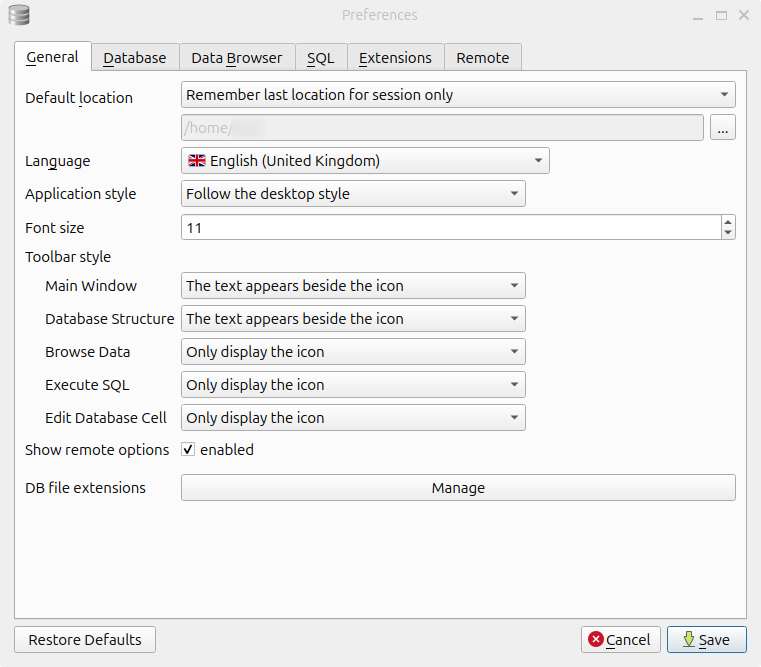
- On the subsequent screen, hit Add.
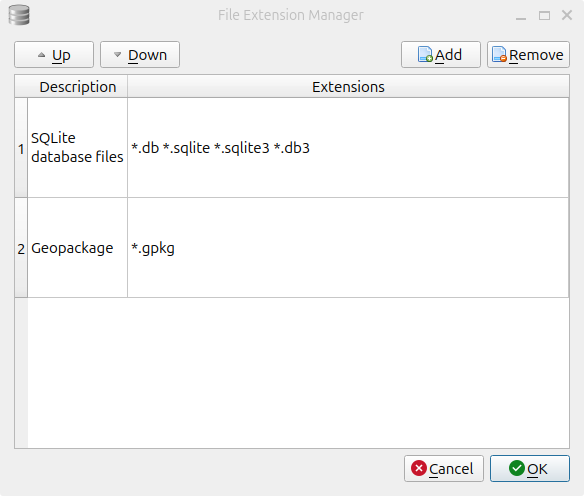
- Double-click on description and type GeoPackage.
- Double-click on *.extension and type *.gpkg.
- When it looks like the above, hit OK.
- Save all of your changes.
4b Optional: relax the security when you run DB Browser.
If you want to export some kinds of data, such as GeoJSON files, you must set the
SPATIALITE_SECURITYenvironment variable torelaxed. This will allow DB Browser to write to your system from within an SQL session. The functions that require this setting are noted in the Spatialite documentation.Note that both ArcGIS and QGIS support Well-Known Text (WKT) imports, so if your intention is to export to a GIS system you don’t have to do this. But for pure GeoJSON exports and Shapefile Exports, you do.
You can make this easy to manage by adding the following to your ~/.zprofile or ~/.bash_profile (or whatever shell you use):
db_browser() {export SPATIALITE_SECURITY=relaxed;
                          #TODO verify path
                          DB\ Browser\ for\ SQLite $* 2>&1 &
                          unset SPATIALITE_SECURITY}
This will allow you to run DB Browser normally if you, say, click on its icon, but if you start it from the terminal with db_browser, you will be able to export.
Alternately, you can just add export SPATIALITE_SECURITY=relaxed to your ~/.zshrc or ~/.bashrc, but be aware that this is not recommended.
5 Restart DB Browser for SQLite
If DB Browser is open, close it and reopen it. You need to do this because if you set the environment variables after opening it, they haven’t been read.
Now you can start working with GeoPackages.
Loading last updated date...