MacOS installation instructions
Your life will be greatly simplified if you use homebrew. These instructions assume it is installed.
1 Install DB Browser for SQLite: brew install --cask db-browser-for-sqlite.
2 Install libspatialite: brew install libspatialite.
2a Optional raster support. Install rasterlite: brew install librasterlite2. Raster data is not covered in this workshop but you do have the option. Note: as of 2026-02-24, you may need to compile it yourself.
3 Add extensions. In DB Browser for SQLite, go to Preferences/Extensions. Under Select extensions to load for every database, select the puzzle piece with the plus symbol (the top icon), navigate to mod_spatialite.8.dylib and select it. Click Save.
You must link to the real file, not a symbolic link or shortcut to it, which will (probably) be at
/opt/homebrew/Cellar/libspatialite/5.1.0_3/lib/mod_spatialite.8.dylib.Depending on the version of your operating system, you may also need to force code sign both DB Browser and the extension. This is not a difficult process. fortunately. In a terminal window:
codesign --force --deep -s - /Applications/DB\ Browser\ for\ SQLite.app
codesign --force -s - extension_name.dylib
Note that you may need to use the full path to
mod_spatialite.8.dylib. For more details, please see here: https://github.com/sqlitebrowser/sqlitebrowser/issues/3256#issuecomment-1518748170
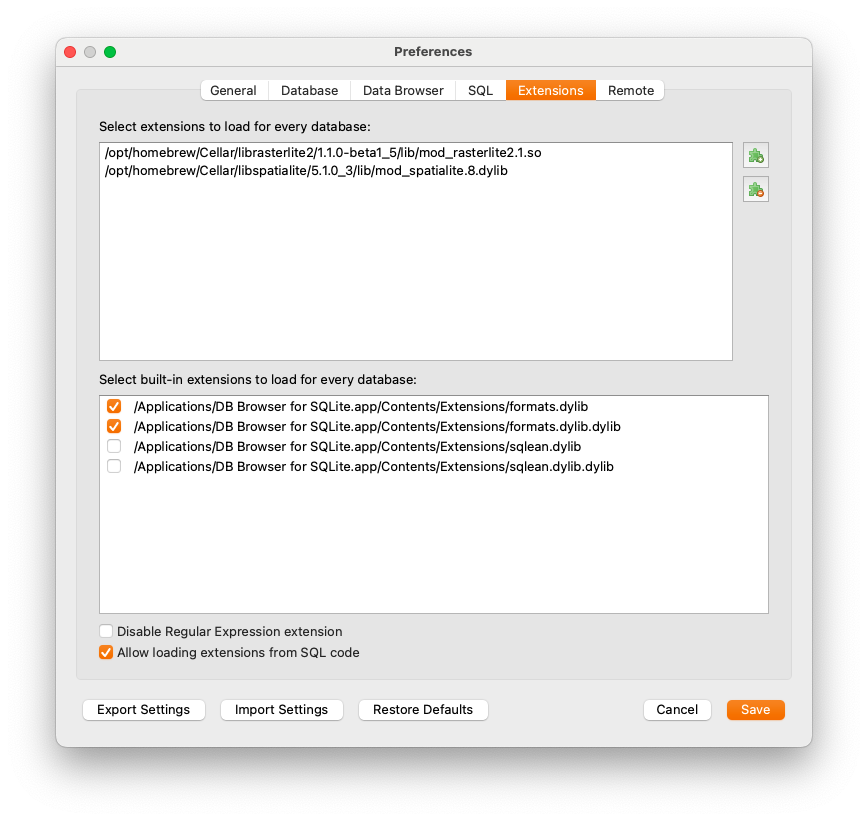
You can add the files at /opt/homebrew/lib/mod_spatialite.8.dylib and /opt/homebrew/lib/mod_rasterlite2.1.so. You will note that once you add them, DB Browser will change the path to show the file, not just the link to the file. ie, it will show the actual location of the file, not an alias.
For rasterlite support, do the same thing with the rasterlite file.
If you update the libraries (with brew update, for example) you may need to update these paths as well.
4 Install proj: brew install proj.
4a Optional: To set DB Browser to open GeoPackage files by default:
- Go to Preferences/General/DB File Extensions near the bottom of the window.
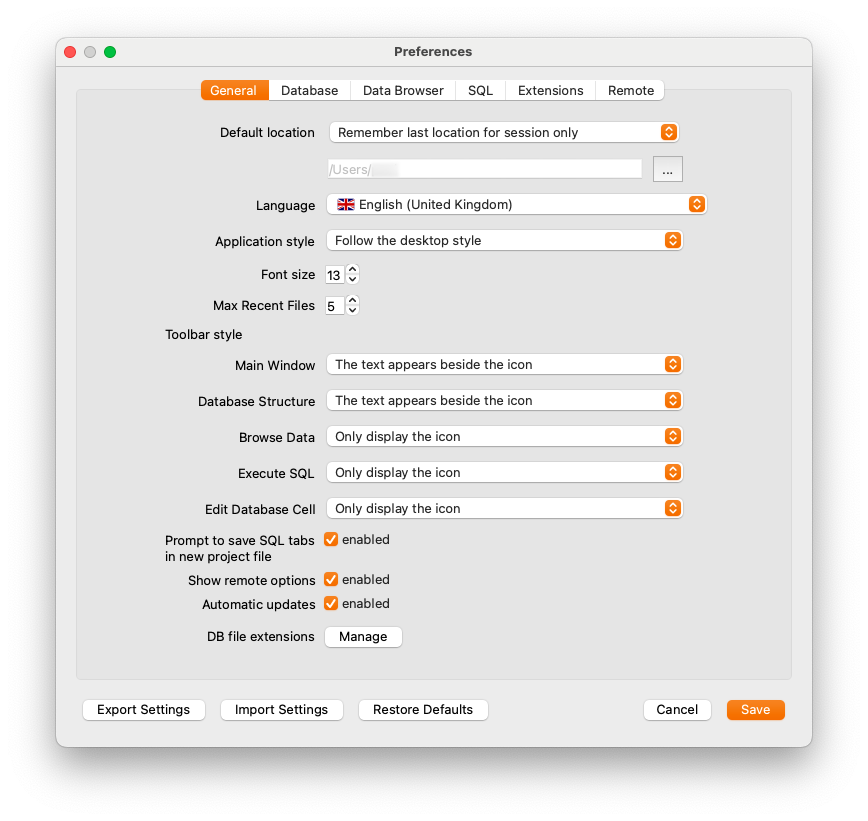
- On the subsequent screen, hit Add.
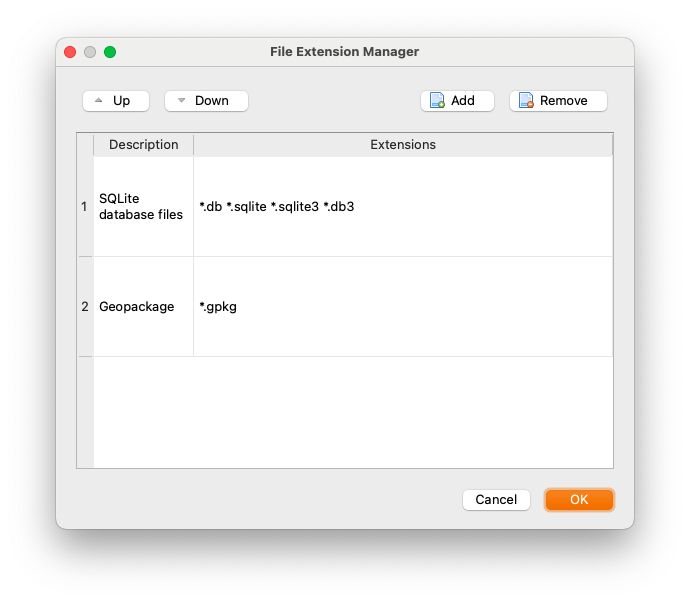
- Double-click on description and type GeoPackage.
- Double-click on *.extension and type *.gpkg.
- When it looks like the above, hit OK.
- On the subsequent screen, hit Save.
4b Optional: relax the security when you run DB Browser.
If you want to export some kinds of data, such as GeoJSON files, you must set the
SPATIALITE_SECURITYenvironment variable torelaxed. This will allow DB Browser to write to your system from within an SQL session. The functions that require this setting are noted in the Spatialite documentation.Note that both ArcGIS and QGIS support Well-Known Text (WKT) imports, so if your intention is to export to a GIS system you don’t have to do this. But for pure GeoJSON exports and Shapefile Exports, you do.
You can make this easy to manage by adding the following to your ~/.zprofile:
db_browser() {export SPATIALITE_SECURITY=relaxed;
                          open /Applications/DB\ Browser\ for\ SQLite.app $*
                          unset SPATIALITE_SECURITY}
Alternately, if you want the capability of having more than one session open at a time, and you want all warning messages directed to a terminal, you can add this instead:
db_browser() {export SPATIALITE_SECURITY=relaxed;
               exec /Applications/DB\ Browser\ for\ SQLite.app/Contents/MacOS/DB\ Browser\ for\ SQLite $* 2>&1 &
               unset SPATIALITE_SECURITY}
Using one of these options will allow you to run DB Browser “normally”, ie, without export capability, if you, click on its icon, but if you start it from the command line with db_browser, you will be able to export.
Alternately, you can just add export SPATIALITE_SECURITY=relaxed to your ~/.zshrc, but be aware that this is not recommended.
5 Restart DB Browser for SQLite
If DB Browser is open, close it and reopen it. You need to do this because if you set the environment variables after opening it, they haven’t been read.
Now you can start working with GeoPackages.
Table of contents
Loading last updated date...