Hands On Thematic Mapping
In this section, you will create two thematic maps — a choropleth map and a proportional symbol map — to visualize the number of Douglas Fir street trees in each Vancouver neighbourhood. Through making these maps, you will learn how to build queries that run selections on your data, as well as analyze the spatial distribution of your data by running geoprocessing tools.
Open the QGIS Project
First things first, be sure you’ve downloaded and unzipped the workshop data folder. Download it to a folder on your physical computer, such as Desktop or Downloads, not OneDrive.
Inside the thematic-mapping-workshop folder you will see the following:
-
a
datasubfolder, containing data from the Vancouver Open Data Portal, and -
a
thematic-mapping.qgzQGIS project.
To Do
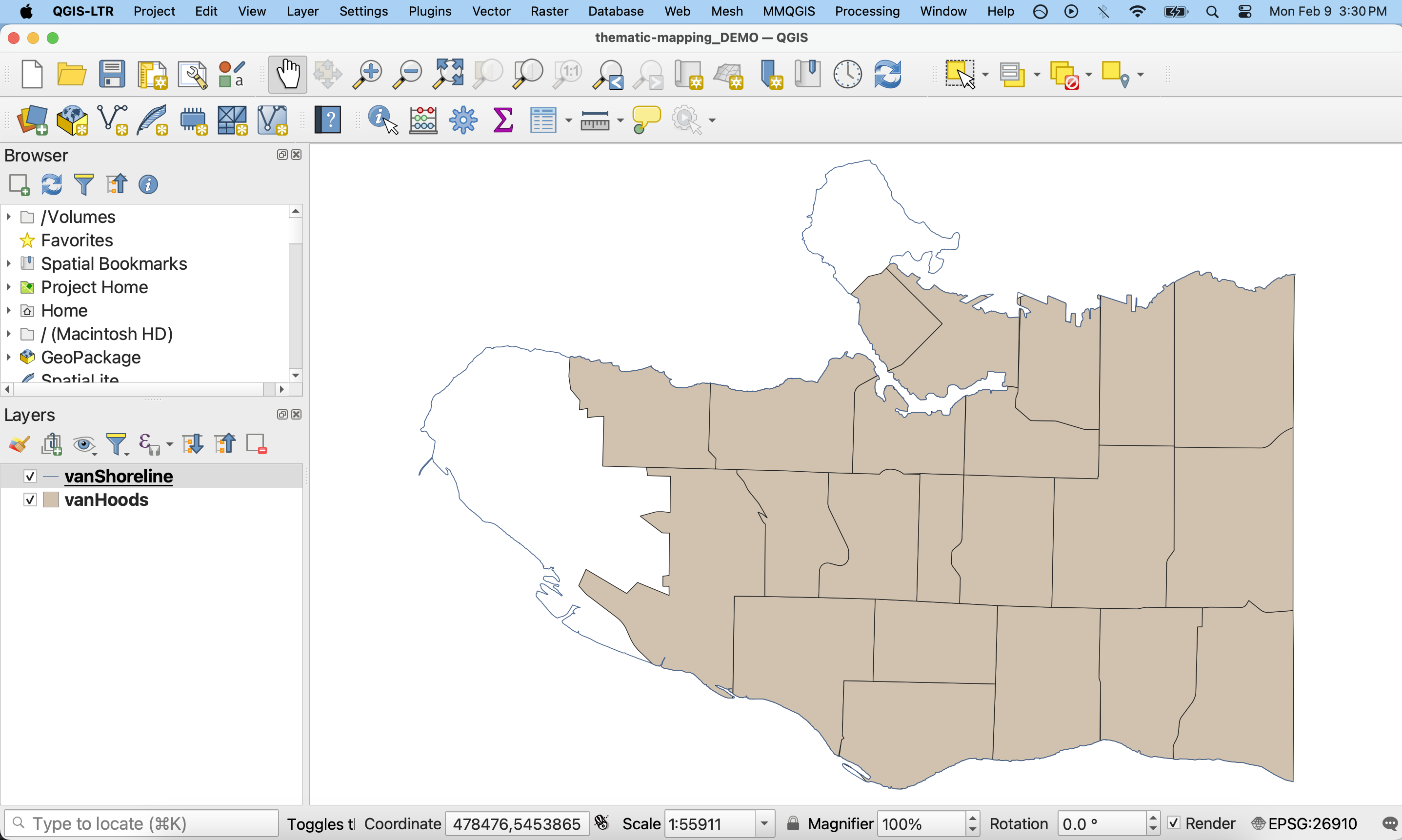
Double click thematic-mapping.qgz to open the project in QGIS. Once open, Zoom to vanShoreline. Your map canvas will look like this:
A note on data
For this workshop, we will begin with a pre-made project that contains ‘clean’ data that is organized into folders. The project file, thematic-mapping.qgz, already contains the file paths to two layers: vanShoreline and vanHoods. vanShoreline is a shapefile of the coastal outline of the City of Vancouver, and vanHoods is a shapefile of the city’s neighbourhoods, or ‘Local Area Boundaries’. The data subfolder also contains vanBigTrees a geojson file containing a subset of Vancouver Street Trees. The source data of this subset contains over 180,000 features and is 72MB.
When mapping independently, you will likely begin by searching for and evaluating datasets on your own. This can be a time consuming (and potentially expensive!) step. It’s also common to have to clean, transform, or otherwise process your data in order for it to work correctly in your GIS project. We are avoiding this by design by providing a prepared QGIS project and pre-processed data for this workshop.
Remember, unlike in ArcGIS Pro, a QGIS project does not store your data but rather the file path connections; if you ever move your data to a different storage location, QGIS will prompt you to update the location of the layer in the Layers Panel. Best practice is to keep your data organized in folders associated with your project so that they are logically arranged in folder systems from the very start of any project. A QGIS project also contains any style settings that have been applied to your data layers. Remember to save often to protect your work!
Table of contents
Loading last updated date...