Layer Joins
Joins create a connection between two layers, appending the attribute information from one layer to another. To create a join between layers, there must be a shared field between them that matches in both values and field type. The column name need not be the same.
Layer joins create temporary or tenuous connections in the sense that you can always remove a connection. You can think of the layers as “holding hands” for as long as you need. More permanent merging of layers can be accomplished through vector tools such as Merge Vector Layers and Intersect. These options will be discussed later on in the workshop.
Create a Layer Join
The Target Layer refers to your primary layer, typically a spatial layer, that you want to add more information to. The Join Layer is the layer that contains the additional information and it can be tabular data (like a .csv).
Let’s join the information on artists from the file artist-info.csv to our spatial layer, public-art.
To Do
- Turn off (hide) all layers except
city-outlineandpublic-art.- Add
artist-info.csvto your QGIS Project. Nothing will show up in the Map Canvas.
- Now open the Attribute Tables of both
artist-infoandpublic-art. What Field matches? Are they both formatted the same data type? If so, you can proceed. If not, see the bottom of this page.
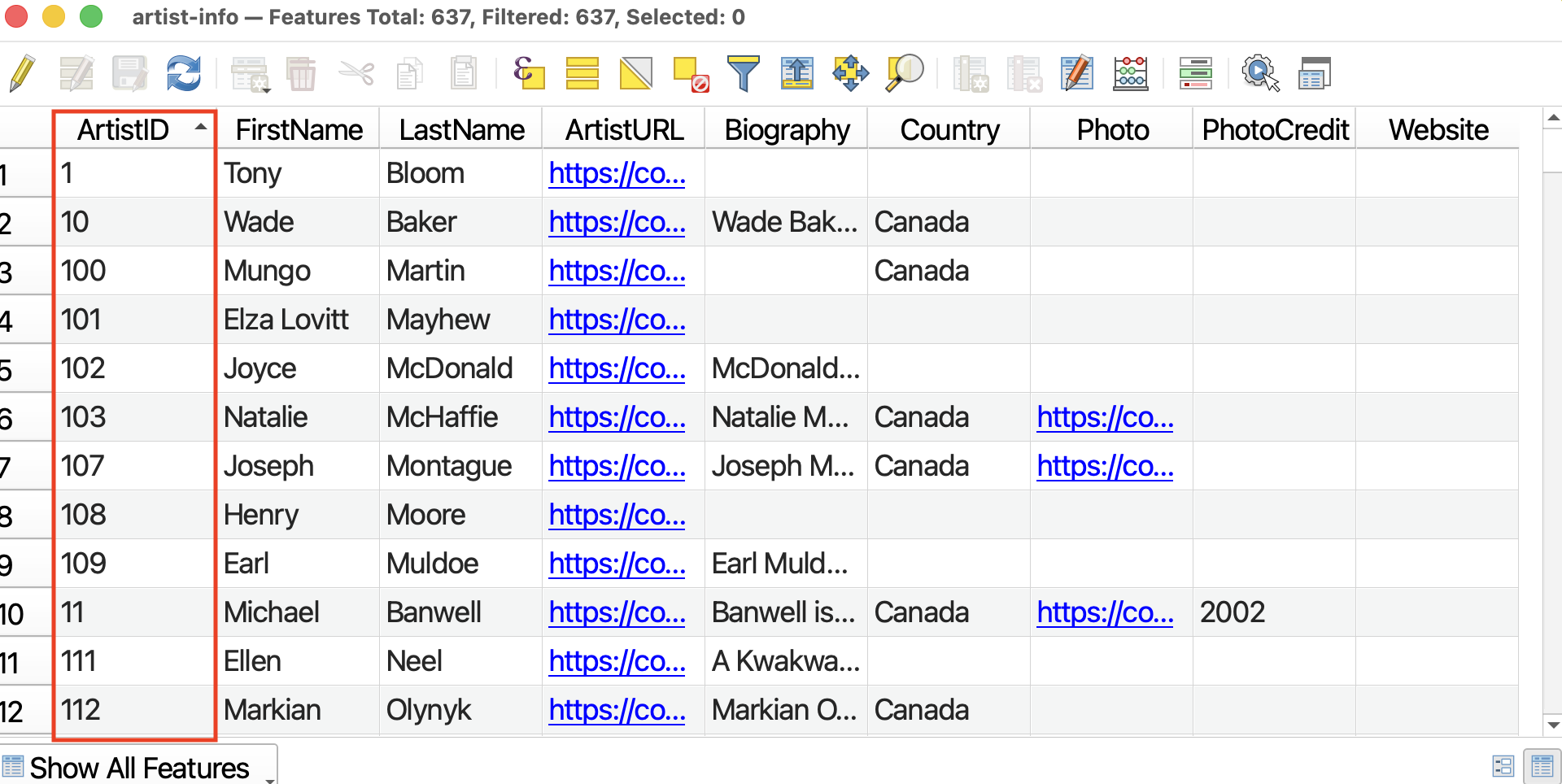
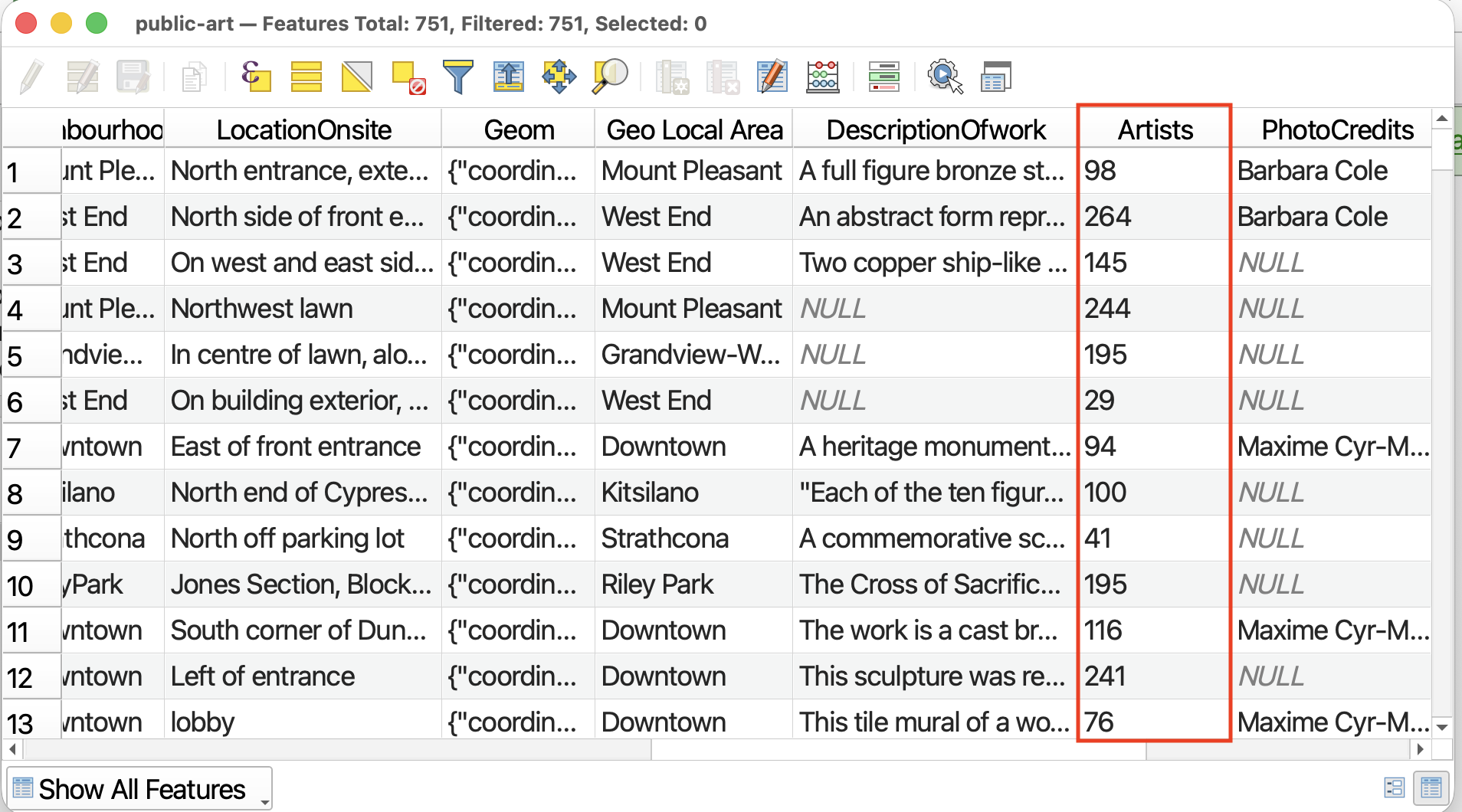
To add a join, go to the Layer Properties of the layer you want to append information to. This will be public-art
- Open the Properties of
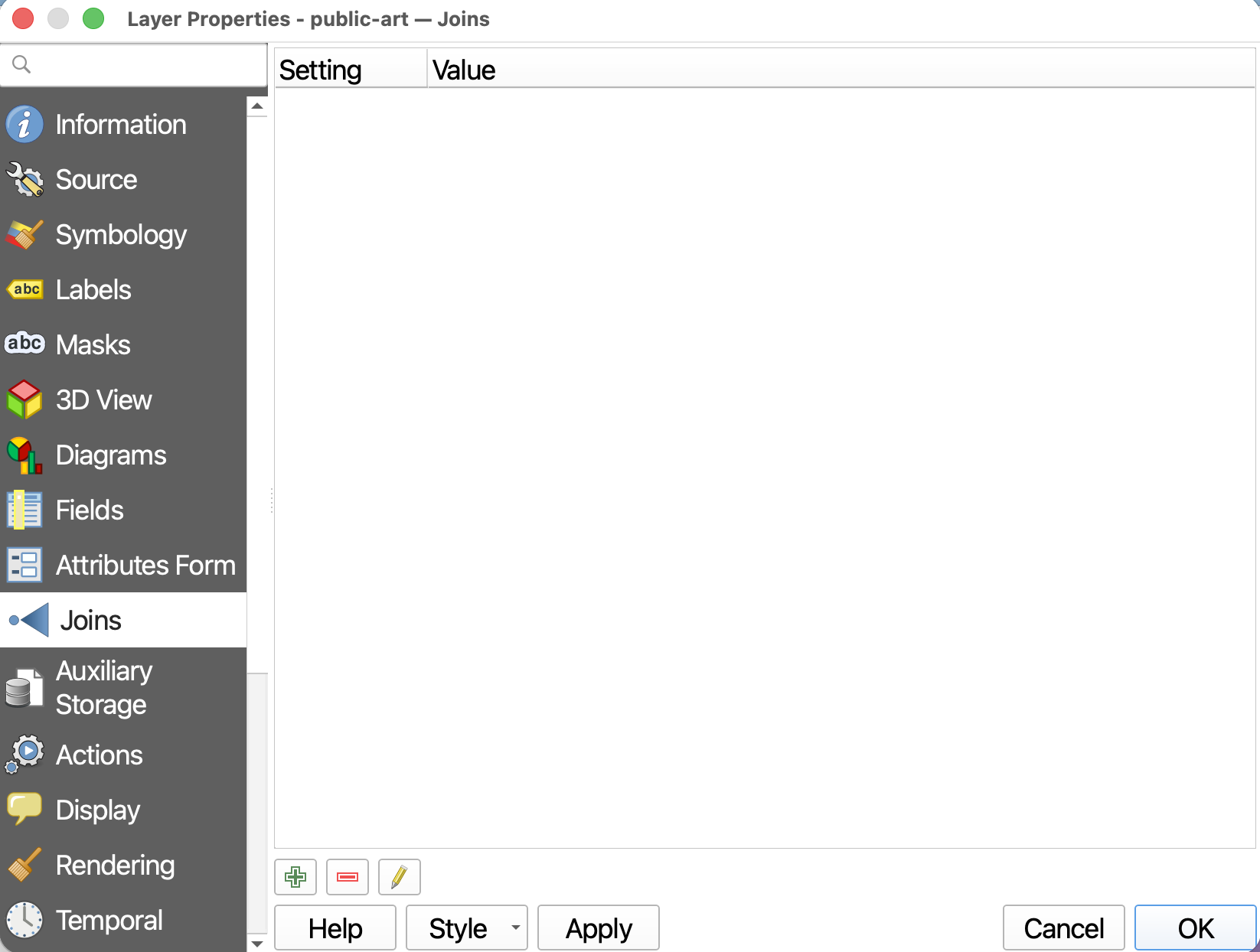
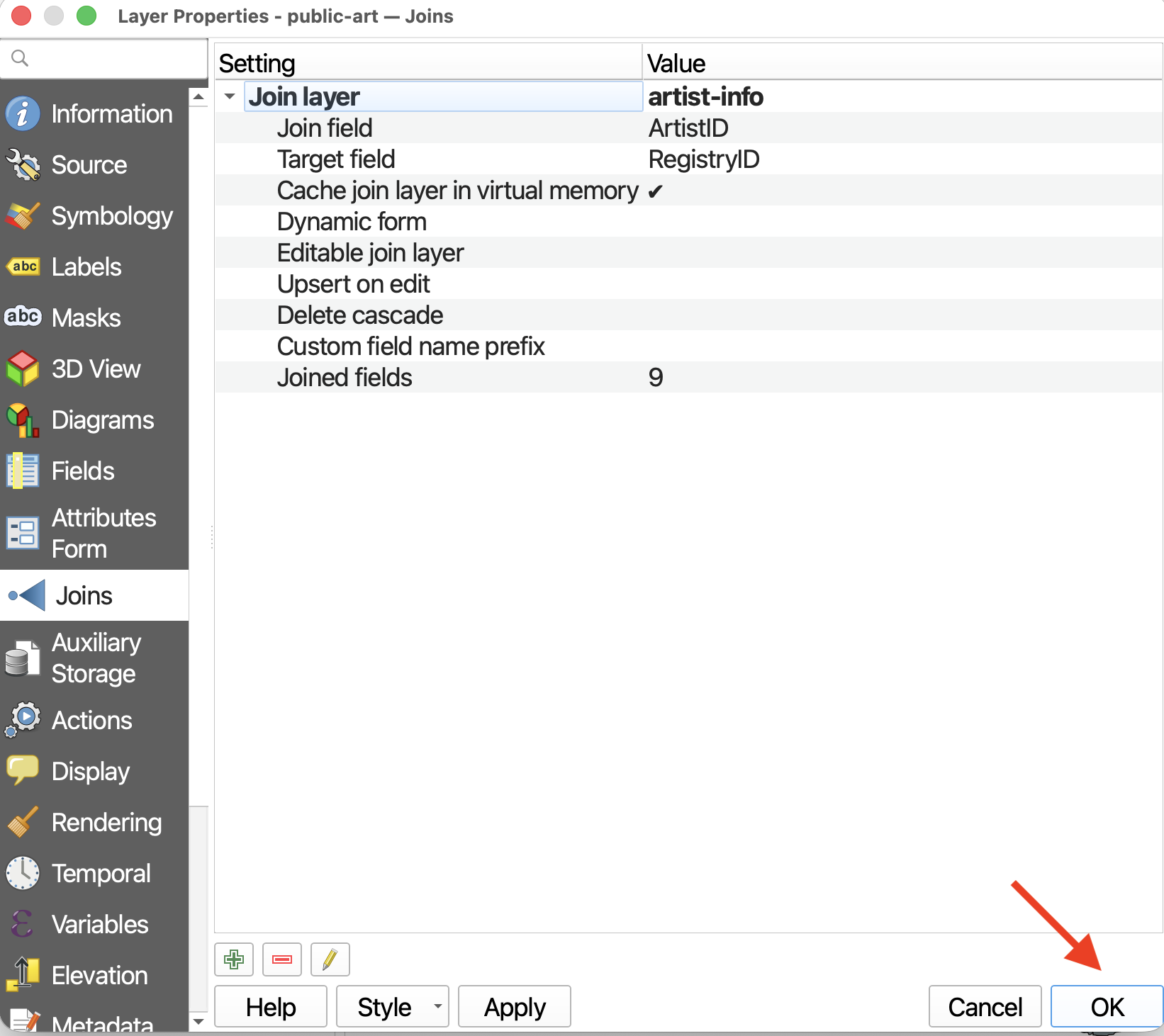
public-artand go to the Joins tab. You’ll see there are no current joins to this layer. Click the green plus icon to add a new join.
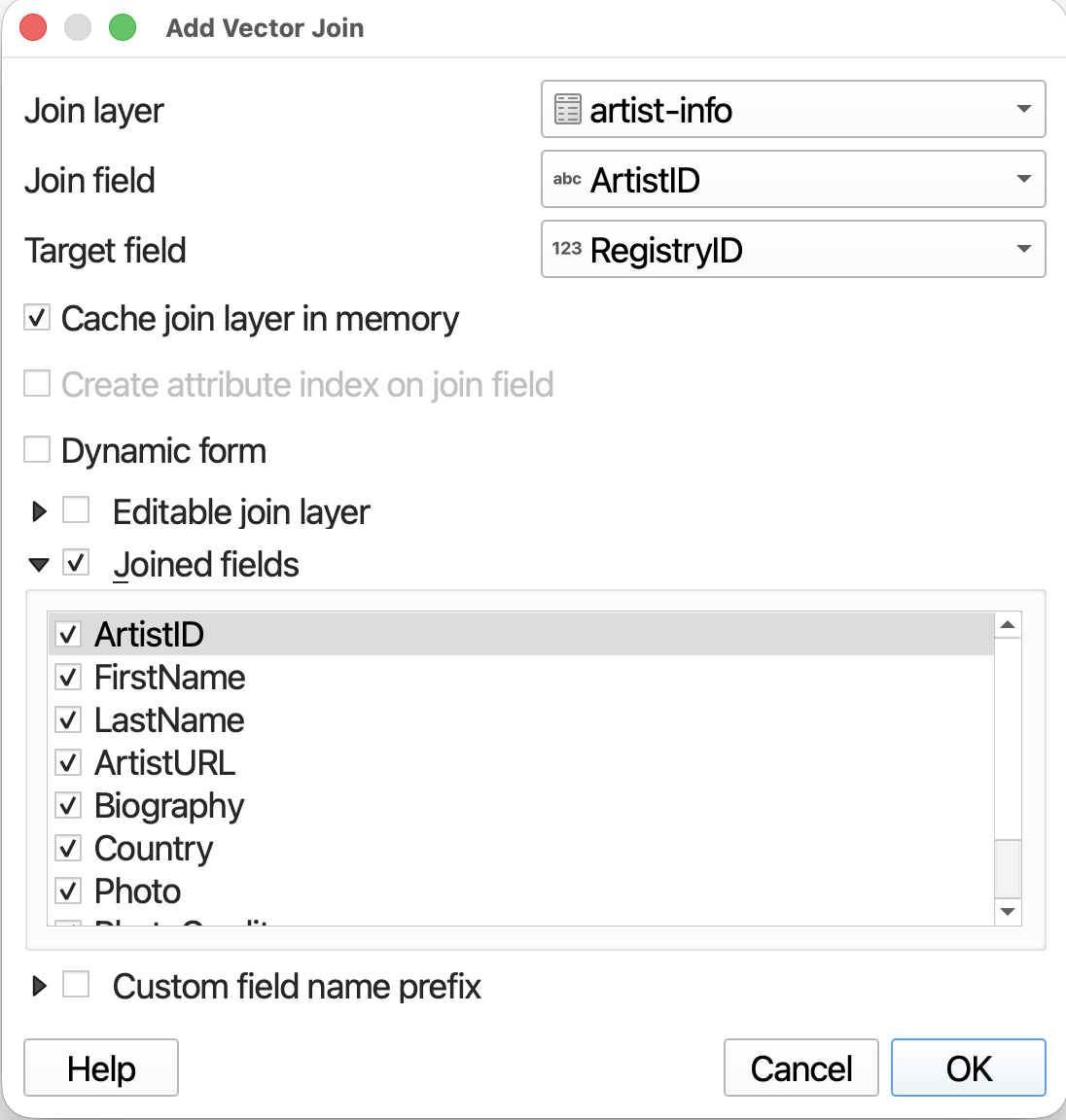
A new window will pop up. This window is easily lost behind other QGIS windows.
- The Join layer will be
artist-info- The Join field, the field of
artist-infothat matches one inpublic-art, will beArtistID- The Target field will be
artists- IMPORTANTLY, Check Joined fields. Here’ you can select which fields you want to join from
artist-info.
- Click OK and OK again to run the Join.
- Open the Attribute Table of
public-artto confirm the Join was successful. You can remove a join at any time.
 SAVE your project.
Changing the Field Type
If you need to change the field type there are two options. The first and more convoluted option is to edit the attribute table and run Field Calculator to update ane existing field to populate with the contents of the current field, just with a different field type. Alternatively, you can open the Field Calculator from Layer Properties -> Fields.
Loading last updated date...