Layer Symbology
Just as the QGIS Project had Project Properties, each layer has properties of its own. To view a layer’s properties, right-click the layer in the Layers Panel and go to “Properties…” at the bottom. We won’t cover all the project properties today, but notice you can learn more about each layer here, including where it’s stored on your computer and its CRS, including its projection.
Symbology governs the outline and color fill of points, lines, and polygons. Depending on the audience and publisher of your reference map, you might have constraints such as Black & White. Keep this in mind. For now, we’ll map in color. See the QGIS Lesson on Symbology for more.
On this page:
Changing Layer Symbology
As they are, the layers we’ve added to our map canvas aren’t particularly aesthetic, nor is foreground adequately differentiated from background. Before we compose our map for export, let’s take some time to modify our layers’ symbology to create a more polished looking map.
Increase the size/color/icon of Public Baths
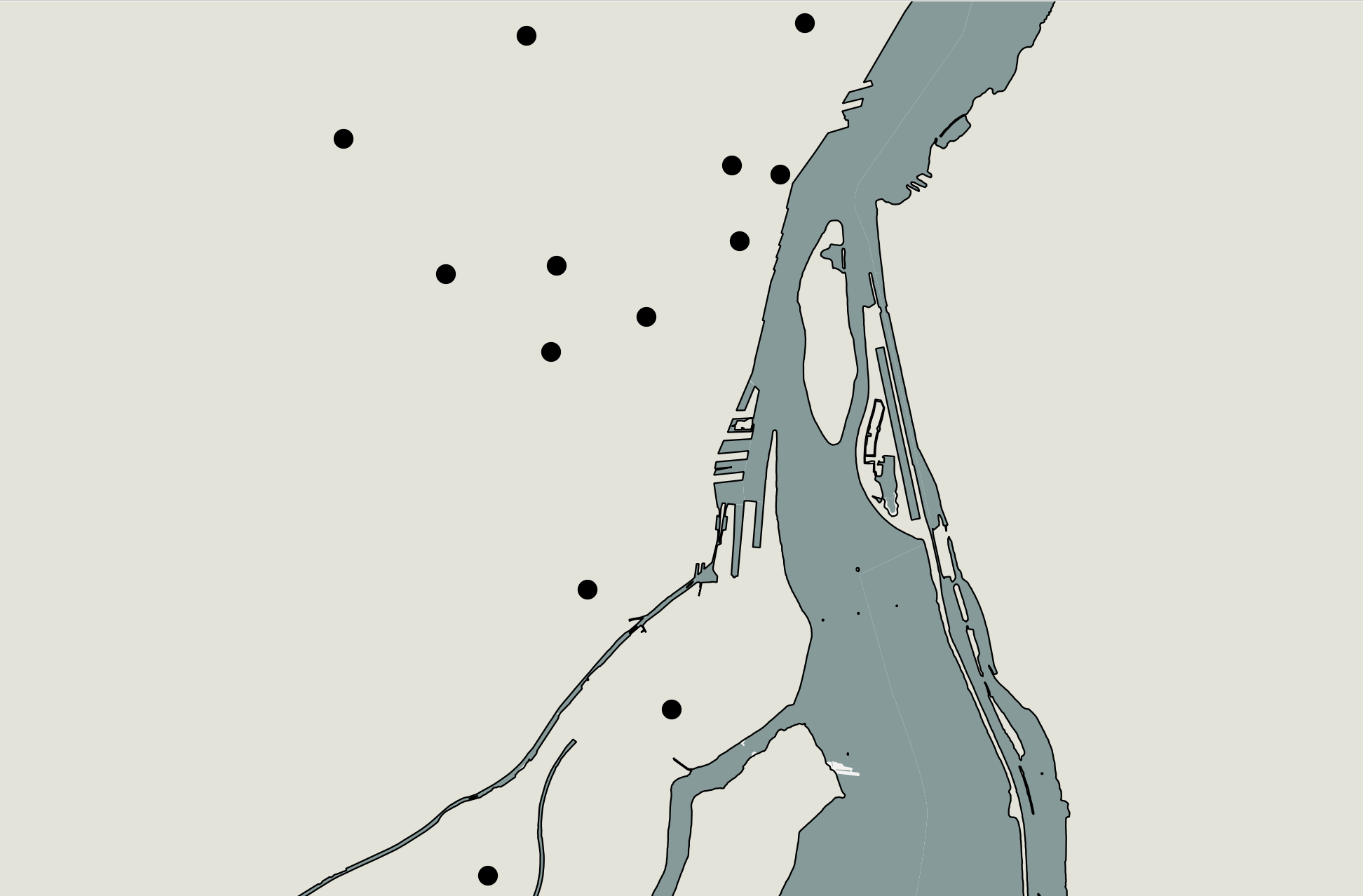
Let’s begin by changing the size of our points representing historic public baths across Montreal. The default symbology when the layer was added renders them quite small and hard to see. Let’s increase the size of these points.
To Do
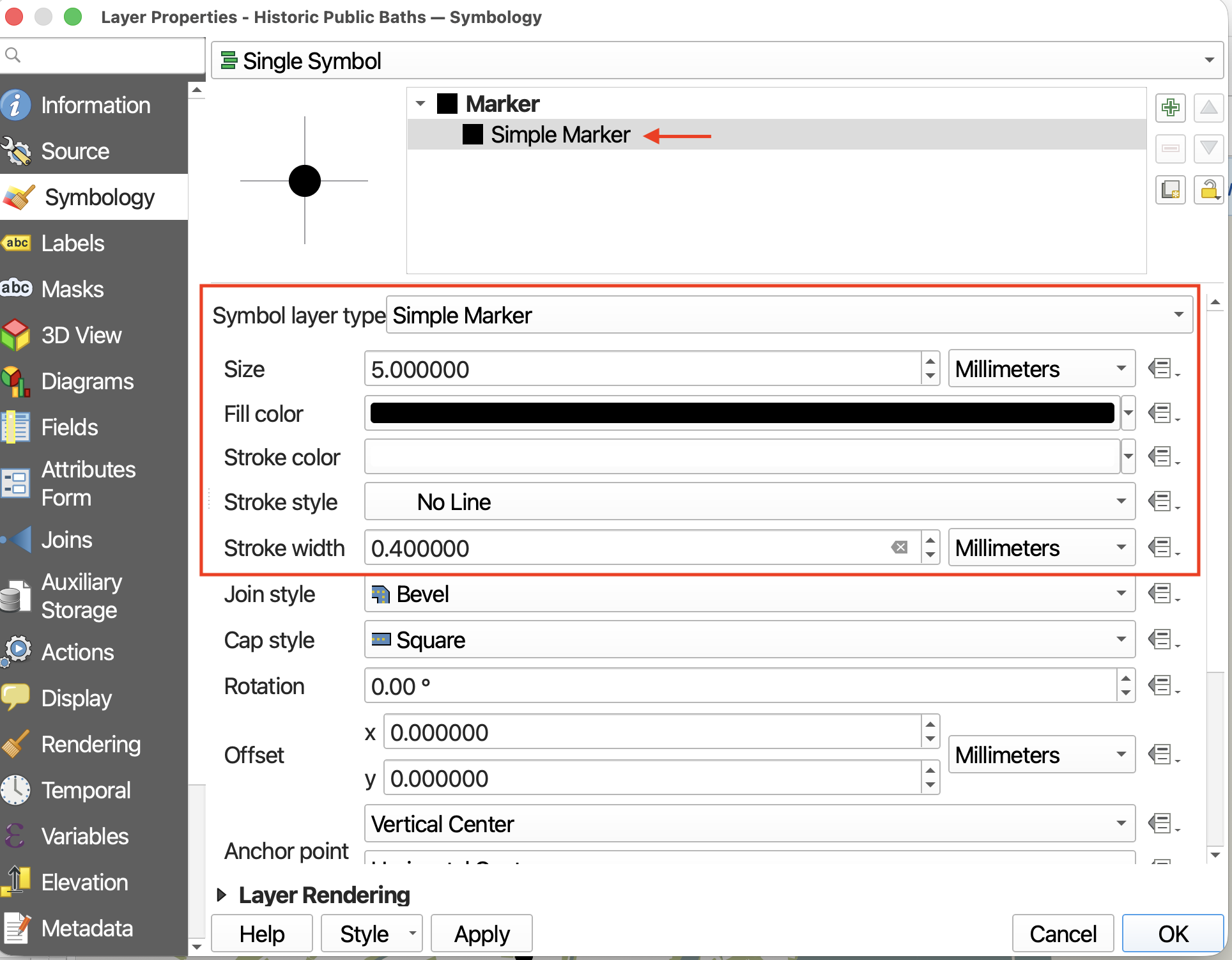
Open the Properties for the layer public-baths, and navigate to Symbology.
Click down to Simple Marker. Here you can increase the size of your points, change the fill color (the color of the point itself), or add a stroke color (outline). (Line features will only have a stroke.)
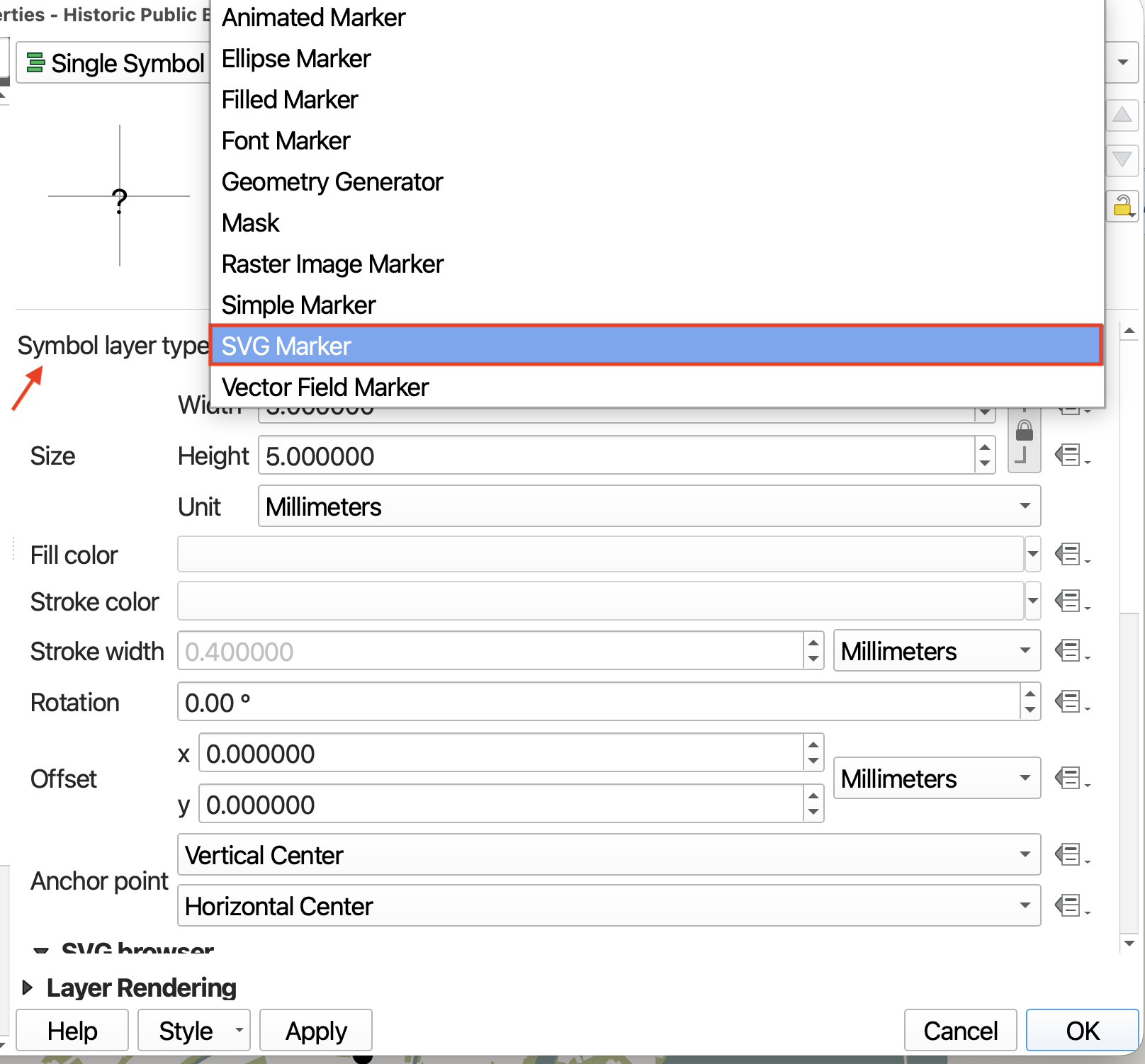
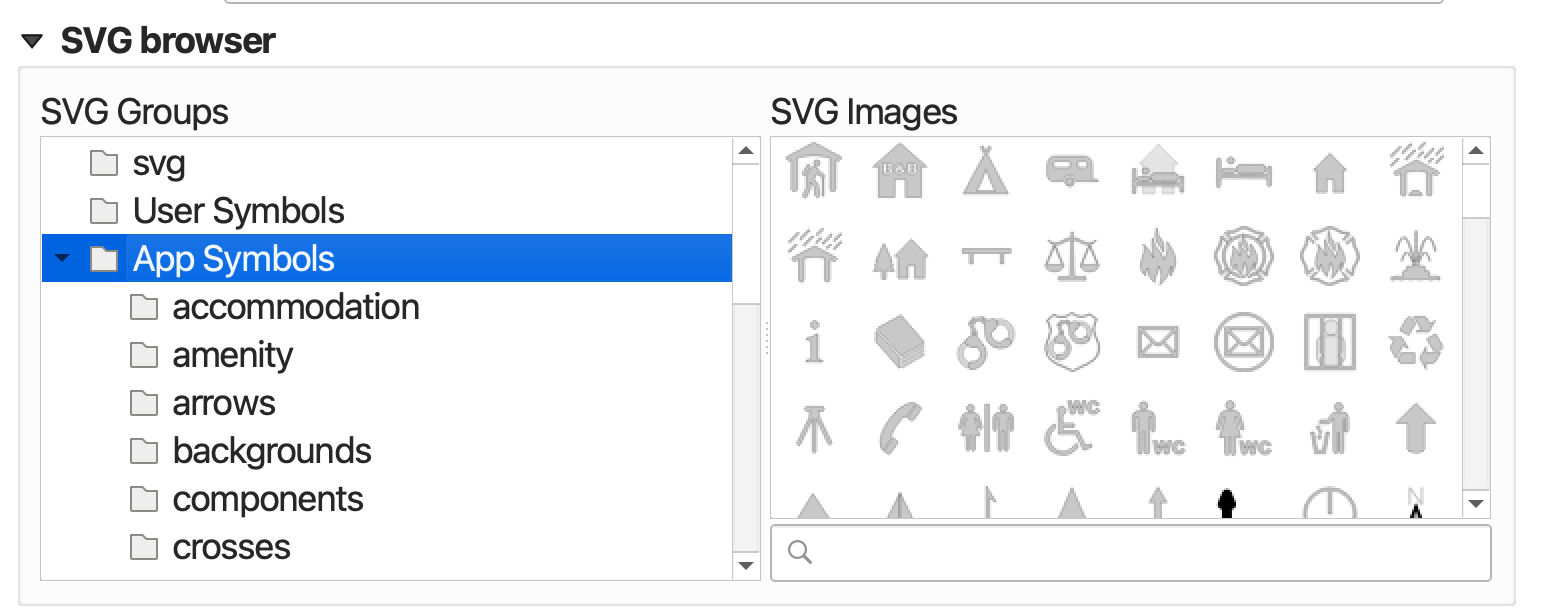
If you want to use a stylized/specific icon to demarcate your points, switch the Symbol layer type from “Simple Marker” to “SVG Marker”. SVGs are scalable vector graphics. You can then choose from a range of loaded icons, or add your own.
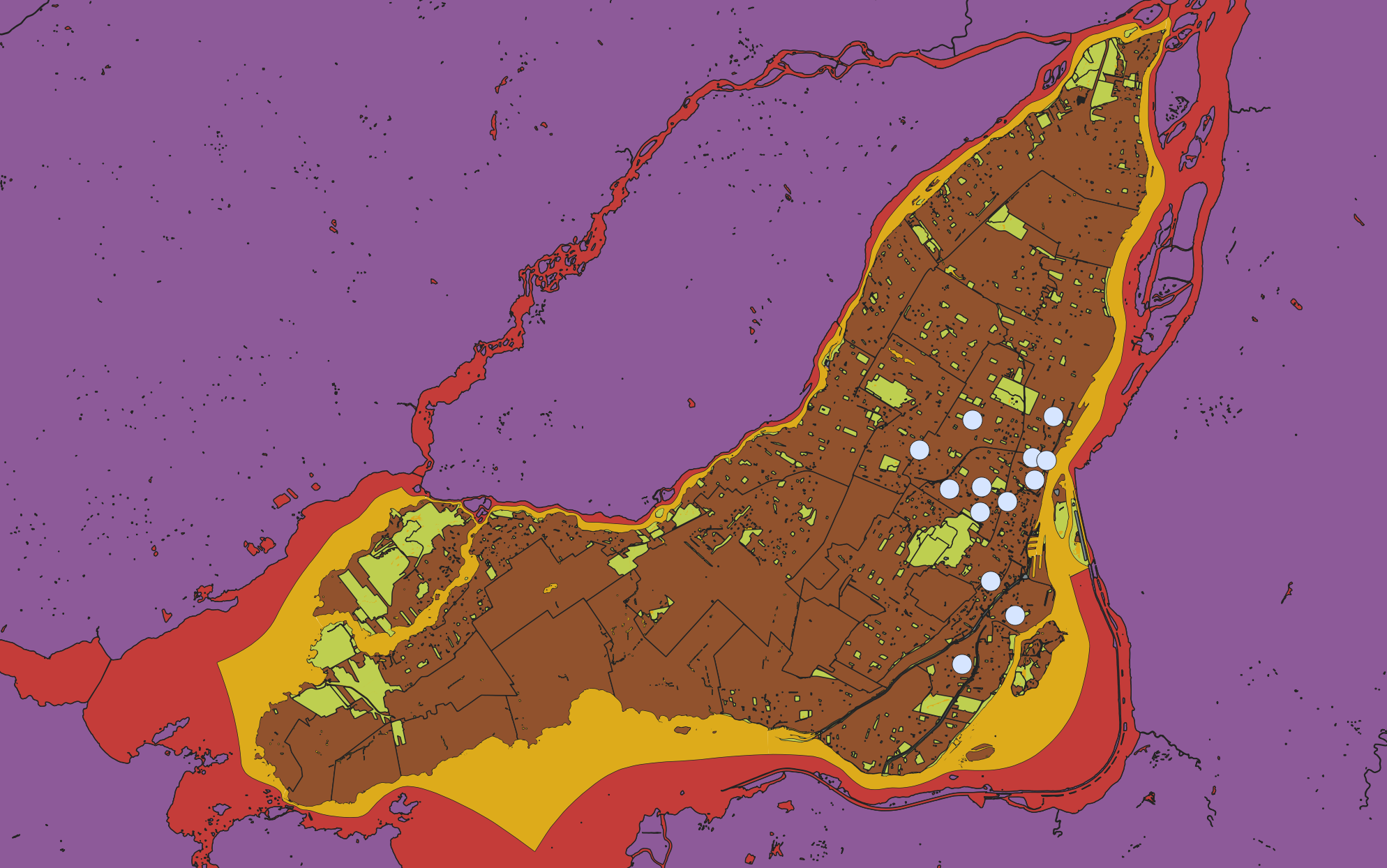
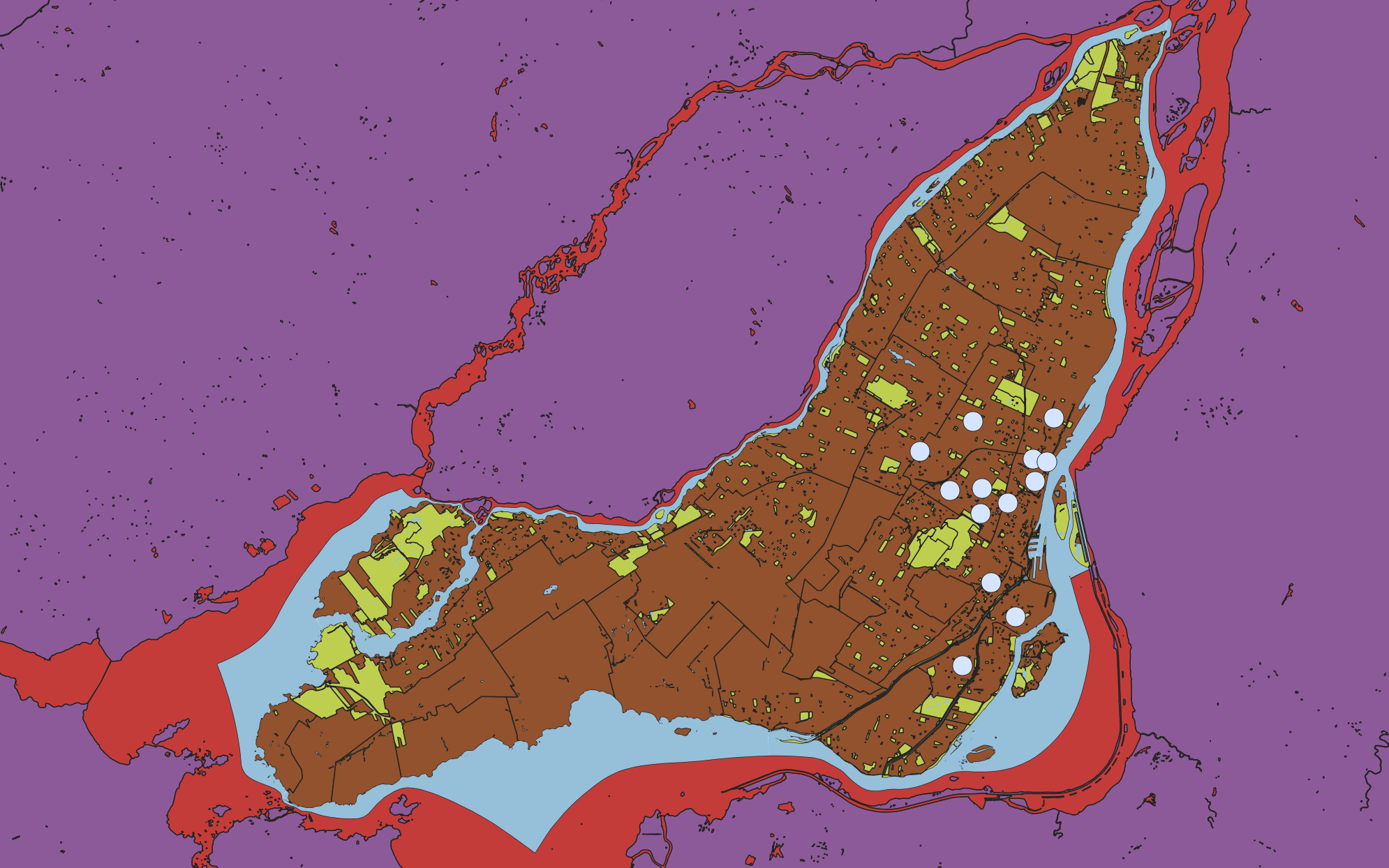
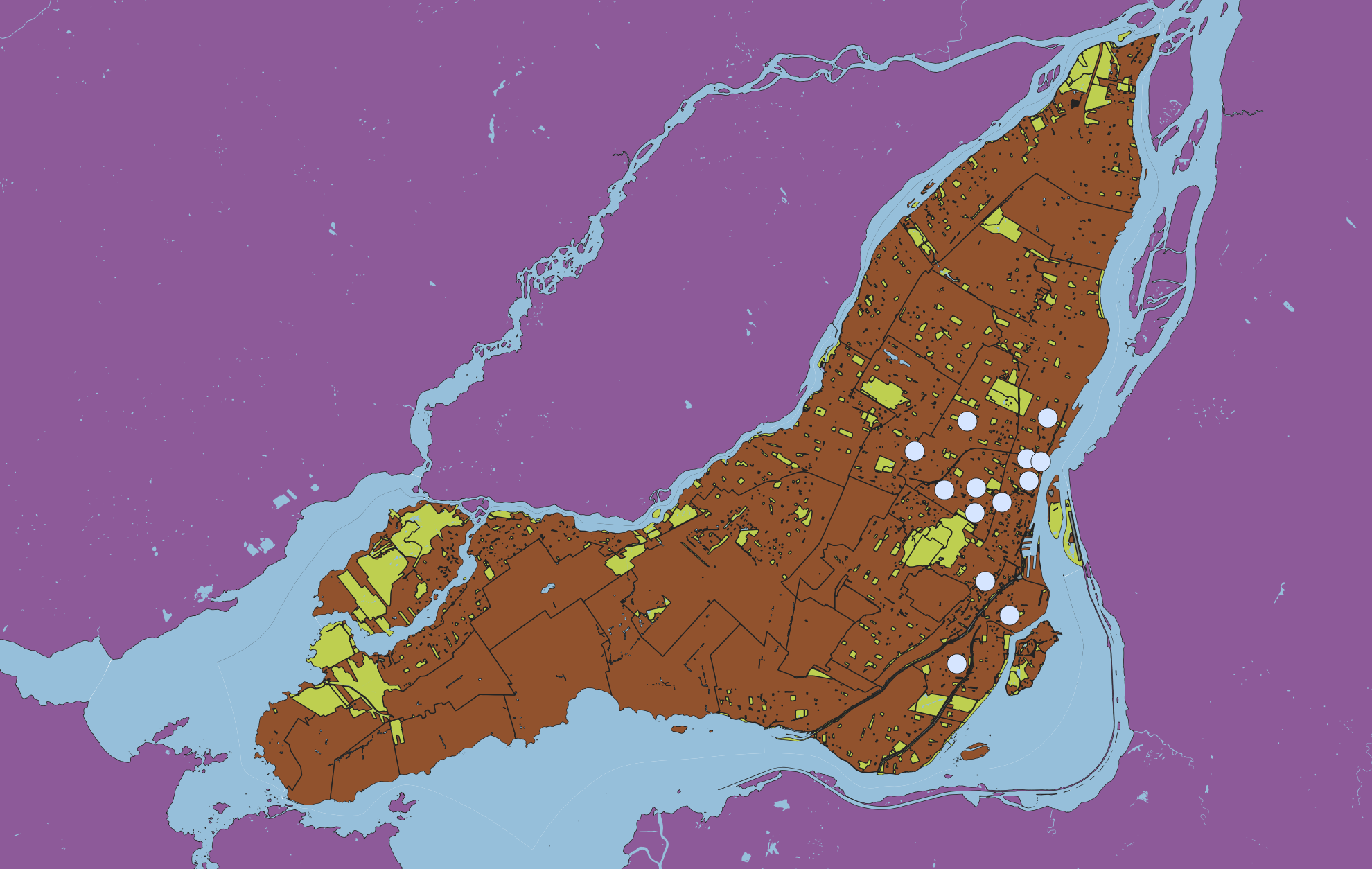
Change water feature color
Now let’s update the color of the water features. Unlike points, these are polygon features. However, they similarly will have a “fill” color we can change.
To Do
Zoom to CARTO_DRA_EAU_JOUR. Then, open the Symbology for the layer. Note that you can also open the symbology by double clicking the layer’s symbol icon in the Layers Panel.
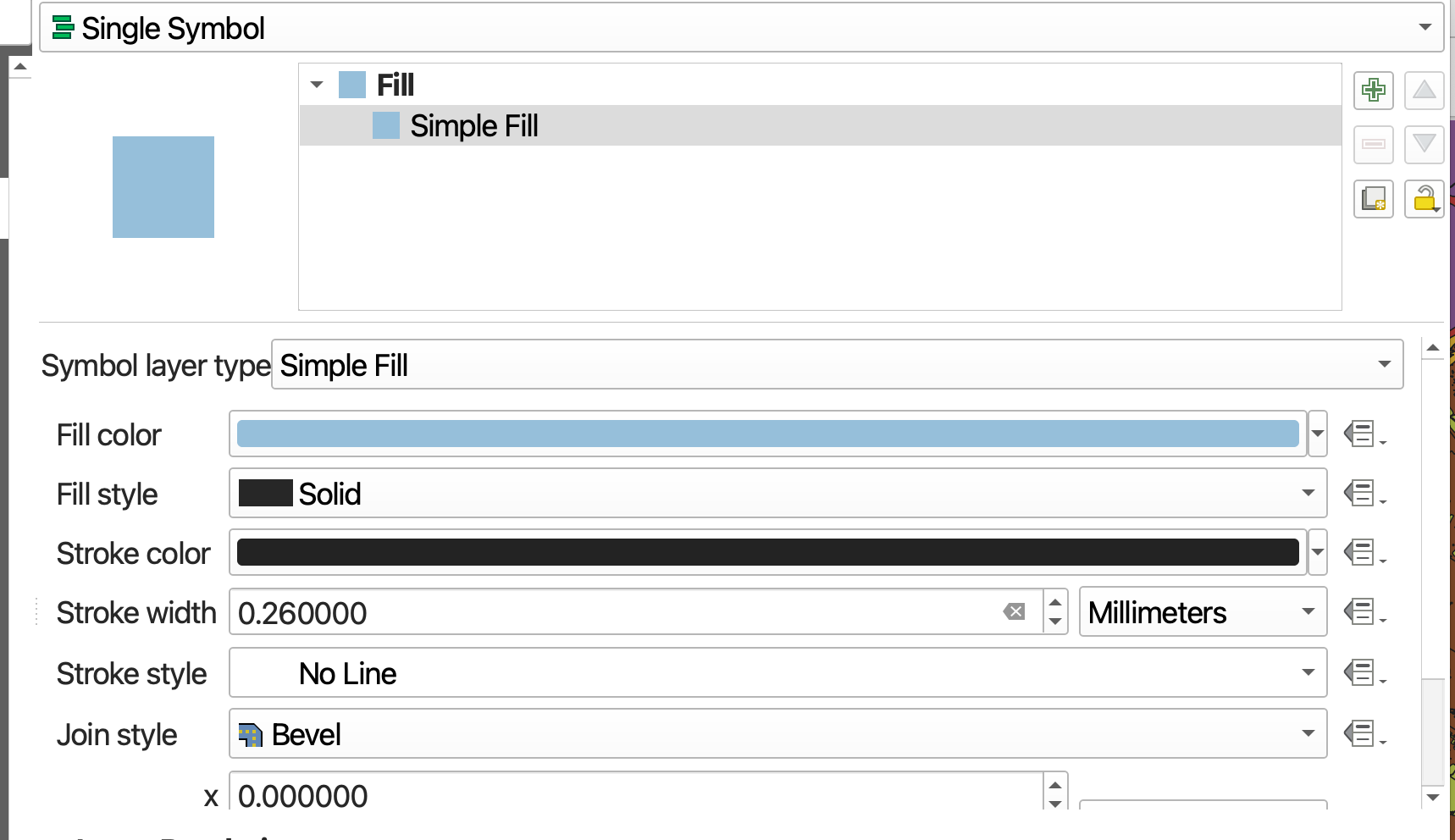
- Click down to Simple Fill.
- Click on the color bar to change the color. Expand the dialogue window if necessary.
- You can change the “stroke”, or outline color. Or, by setting Stroke style to “No line”, remove it all together. try changing stroke to be one. Hit apply to see your changes.
If you want to make your map in Black & White, change the Color Model from RGB to CYMK. Then set everything but K to 0. You can also color sample from the eye-dropper tab.
Tip: Copy and Pasting Symbology
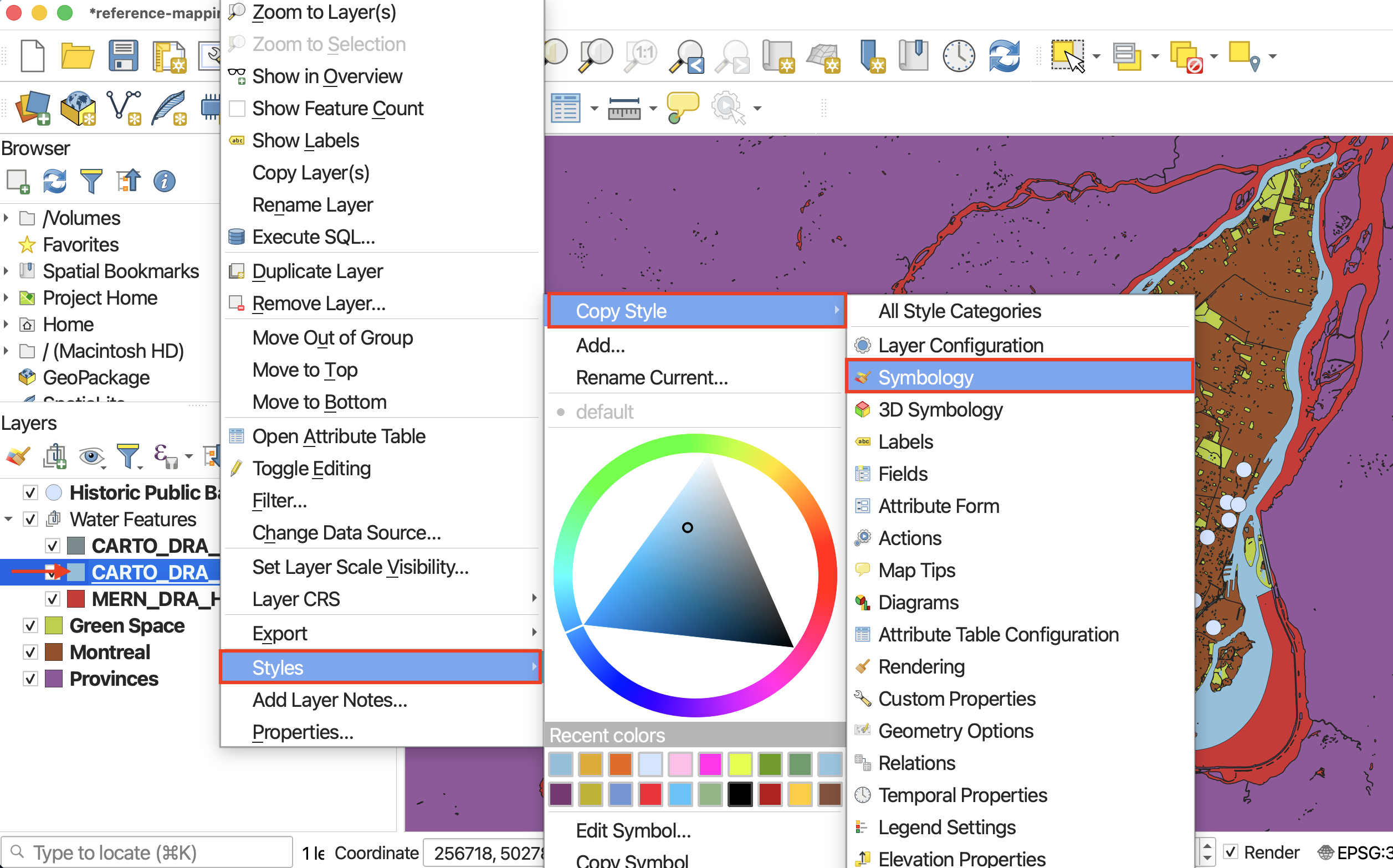
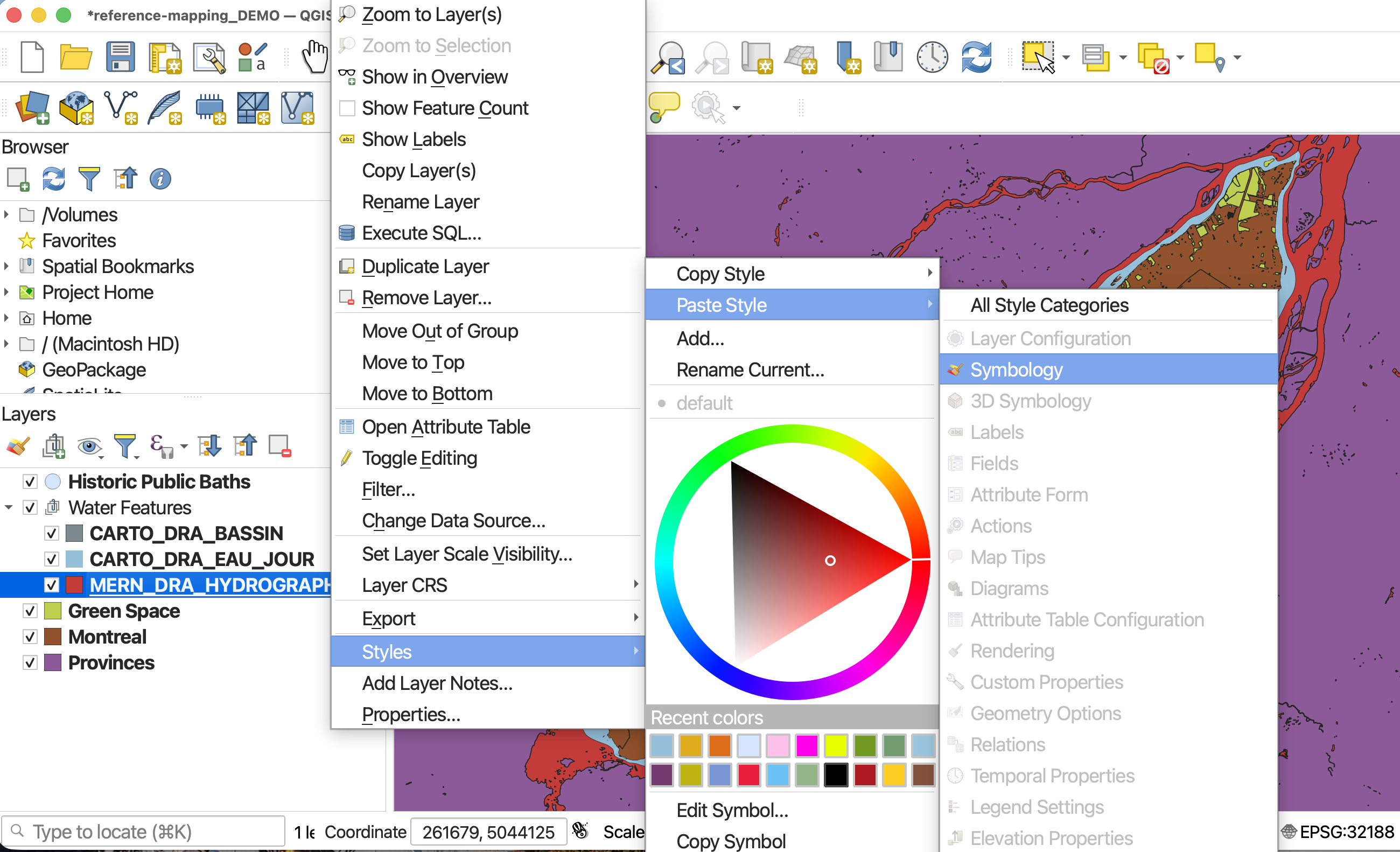
You can Copy/Paste Symbology by right-clicking the layer whose symbology you want to copy in the Layers Panel, going to “Styles” –> “Copy Style” –> “Symbology”, then right-clicking the target layer, and go to “Styles” –> “Paste Style” –> “Symbology”.
- Copy and paste symbology until all water features are the same color.
 SAVE YOUR PROJECT
Categorized Symbology
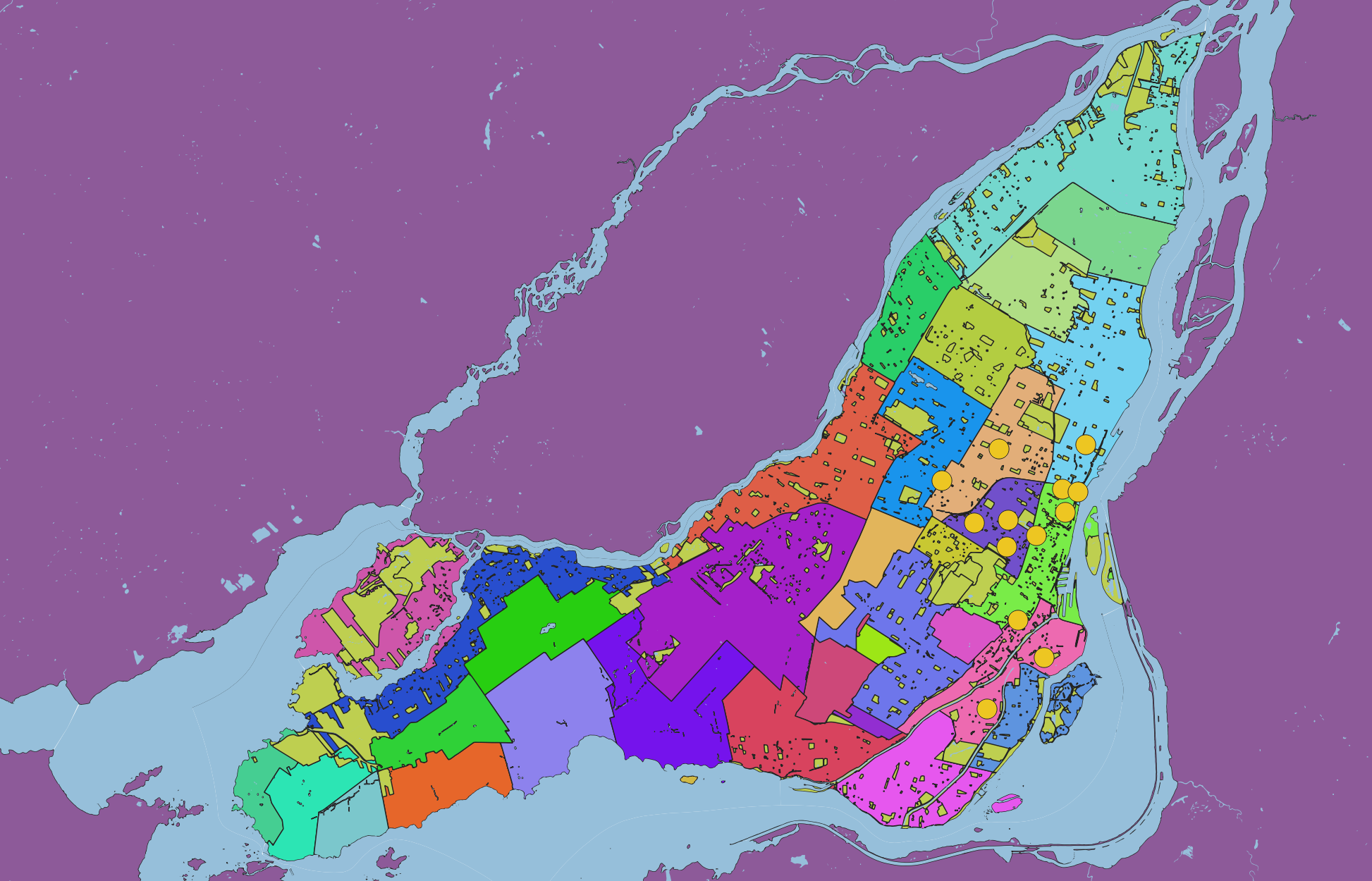
The symbology style for any given vector layer can be Single, Categorized, or Graduated. So far, we’ve been using Single Symbol symbology. This means that each layer will have a single symbology, or color/outline.
However, if you wanted to have each borough a different color, you could change the symbology to categorized and categorize by name using random colors.
Make sure to hit classify to see the results.

Before we give you some time to modify your layers’ symbology, we want to introduce the idea of visual hierarchy.
Visual Hierarchy
Visual hierarchy describes the order in which elements on a map grasp the viewer’s attention. What elements do you want to prioritize and what is the order of importance? Maps can become busy places when multiple elements are vying for attention. The following are considerations and techniques for foregrounding what’s important and backgrounding what’s less so.
Before you begin adjusting your symbology, take a moment to establish which elements are your foreground and which are your background. These are not often clear divisions, so perhaps you can list them out in descending order of importance.
Color
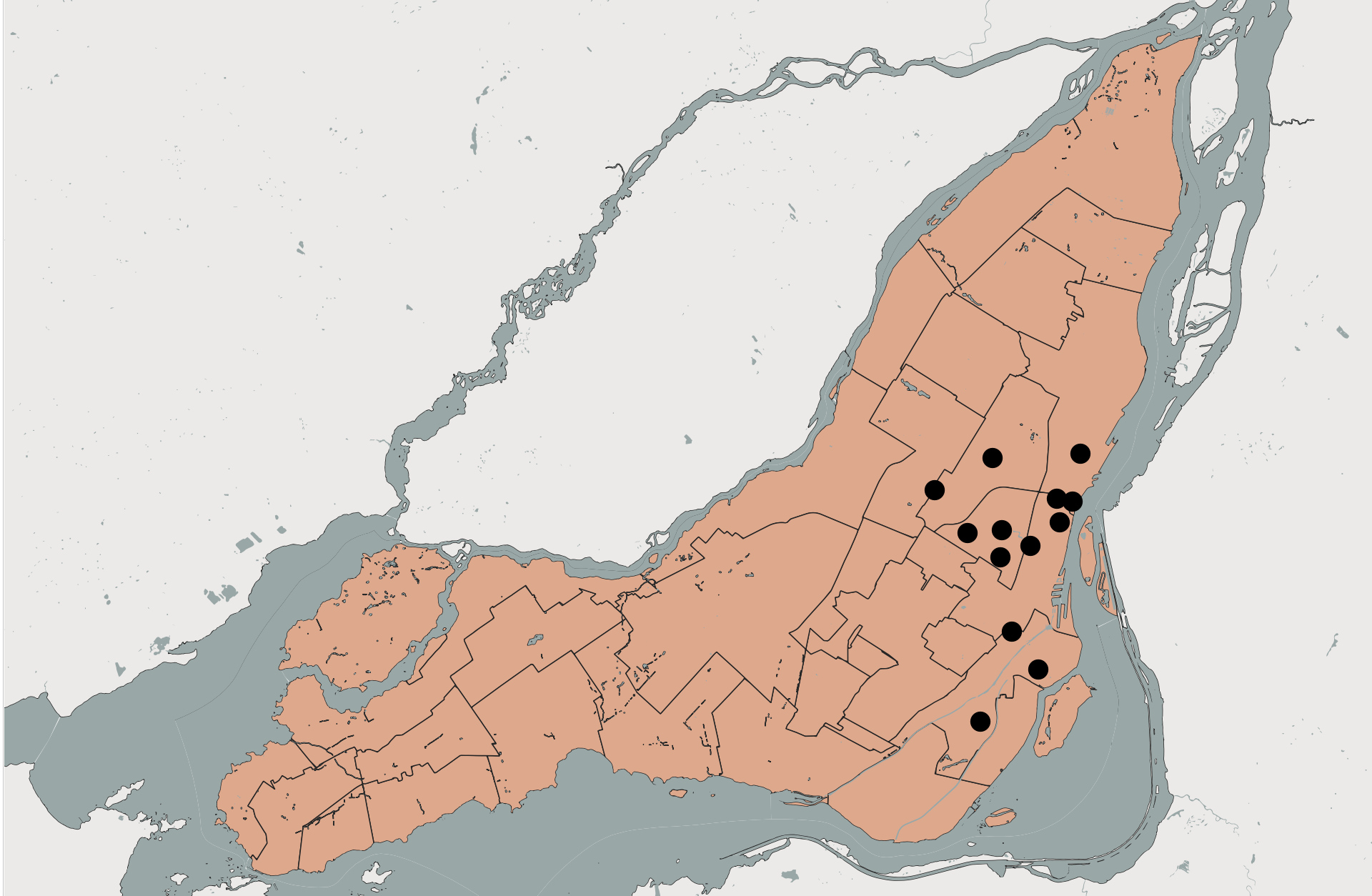
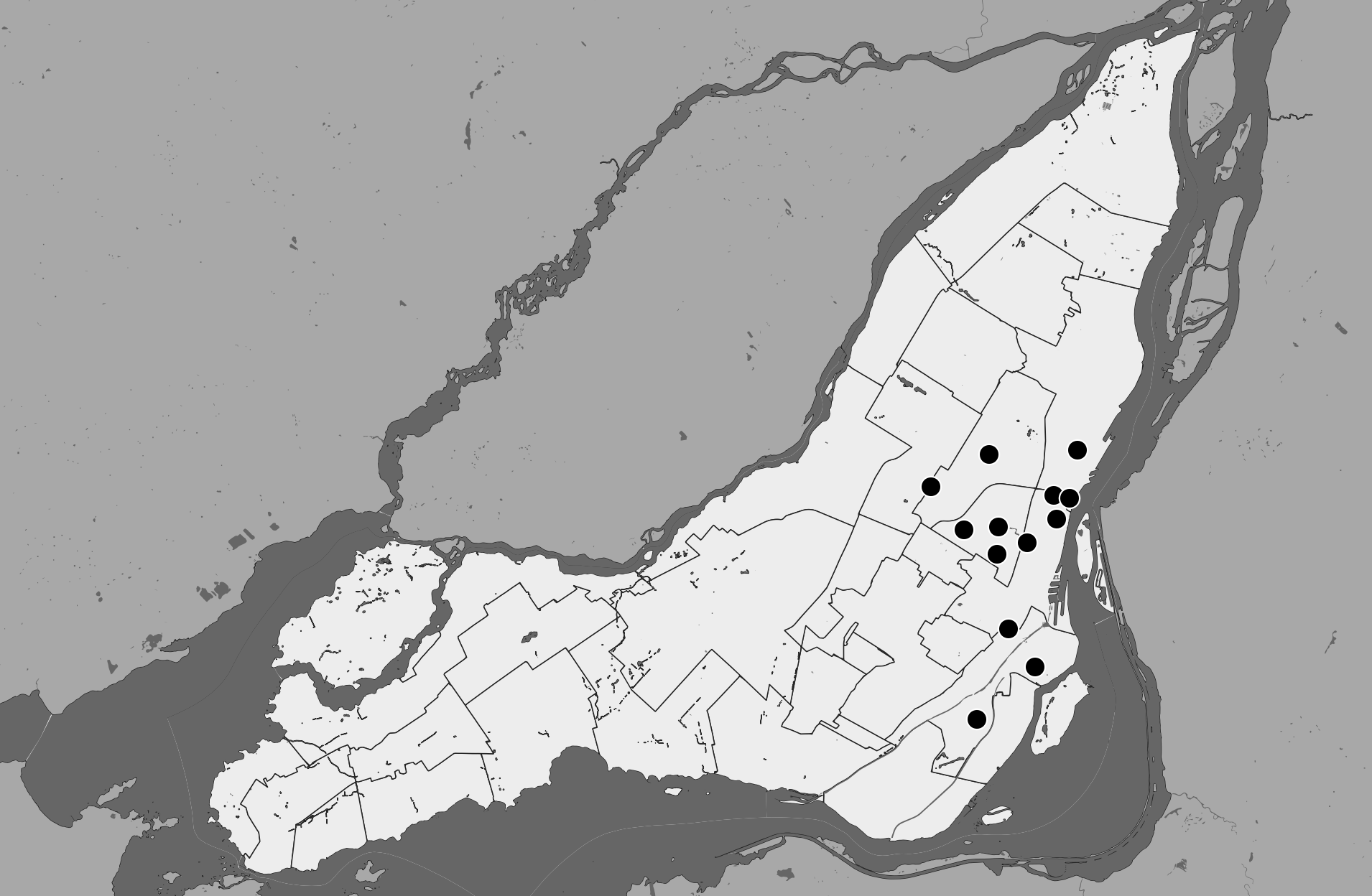
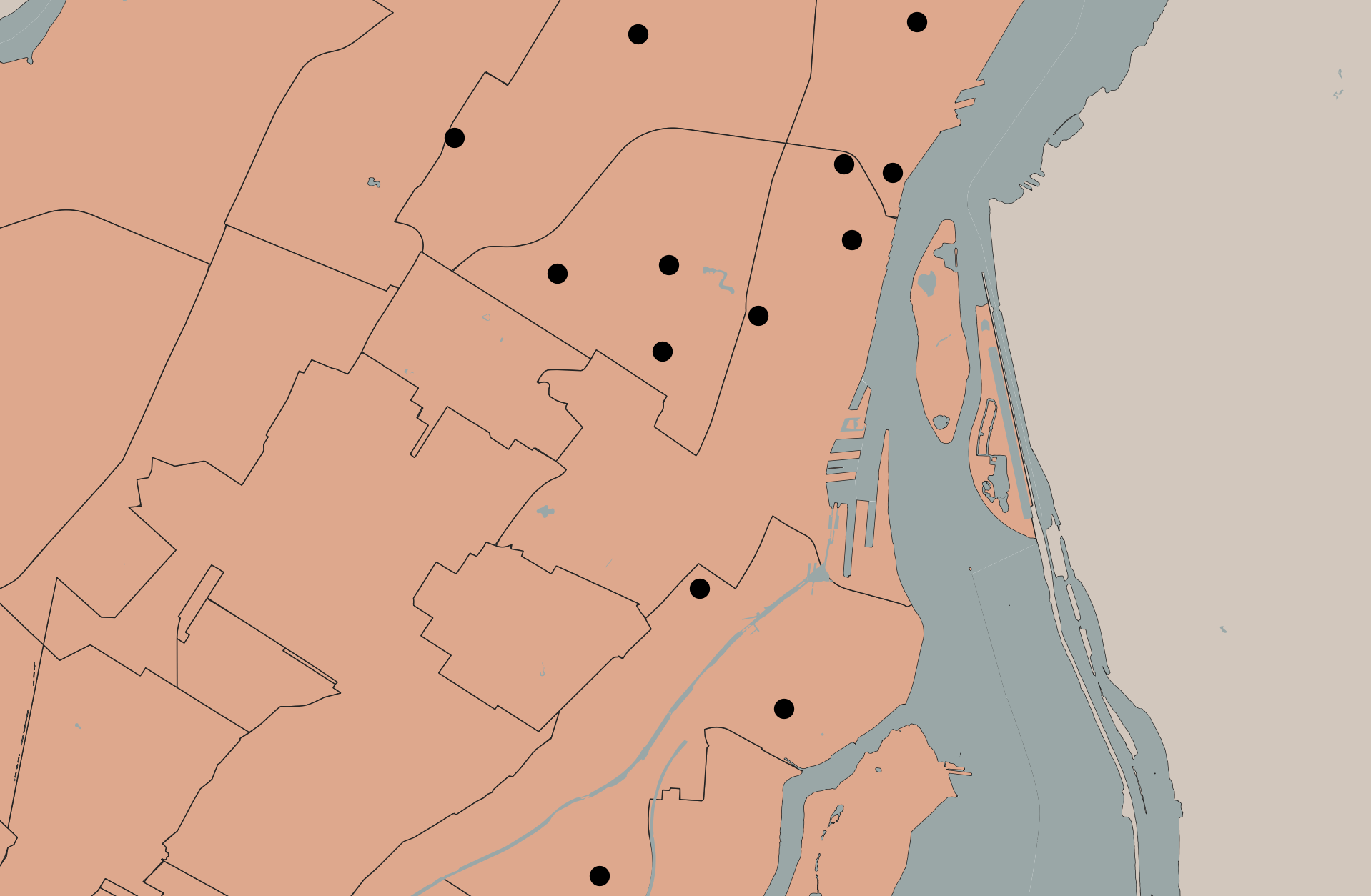
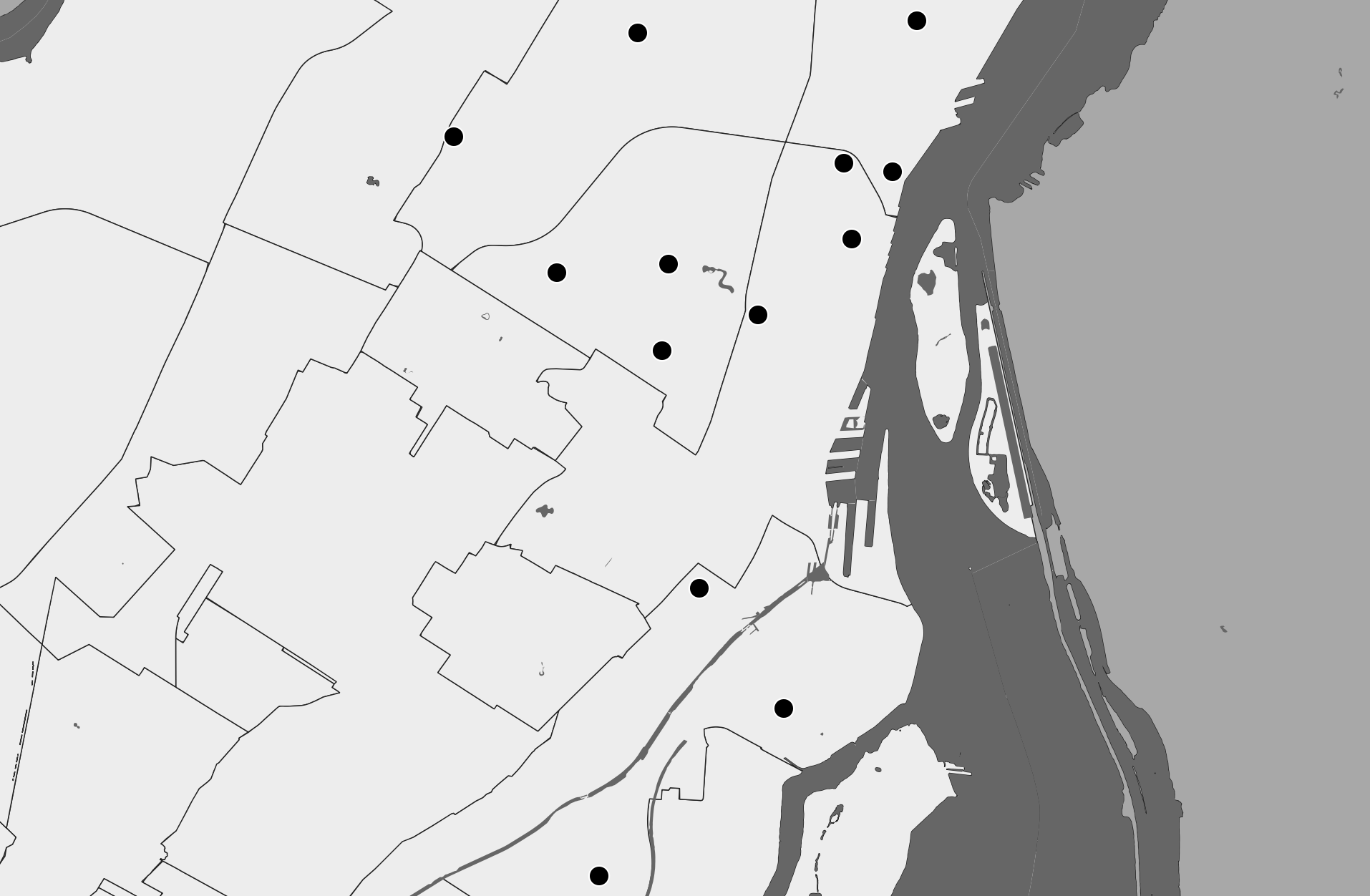
You can create a background/foreground contrast with color by modifying a color’s value (its lightness or darkness) or its saturation (how vibrant or faded it appears). Bright, saturated, and dark colors jump forwards, whereas pale and desaturated hues fade to the back. (When working in Black & White, think about your greyscale as a palette in and of itself.)
When using light vs. dark colors to establish a visual hierarchy between foreground and background, you can either choose for your focus elements to be much darker or much lighter. This is especially the case if there are multiple elements that need to be foregrounded. If combining multiple elements with similar values, you can use saturation to make the foreground stand out. For example, symbolize contextual features with greys and the main feature with a color.
If there are multiple elements in the foreground, you can choose contrasting colors to distinguish them, or, choose similar colors to connect them. Likewise, choosing similar colors for backgrounded items like a data source statement and north arrow, can help minimize the number of colors the viewer has to interpret. If you want your map to be all around softer, you can set the background elements in a grey or desaturated color, and give a warmer color to your foregrounded elements.
Additionally, it can help to use the eyedropper color sampling option to match these elements’ color to whatever they are on top of (like the ocean) and then simply make them a tad darker so they are visible still. Same with legend backgrounds and neatlines (borders around map items). You can also copy and paste the color’s hex code, or add it to your pallette.
Be careful, however, not to make colors too light, lines to thin, or text too small. What appears contrasting on the computer screen will be less contrasting in print. Best practice is to have text size at minimum 7pt, and line width at minimum .3 or .5pt. Again, it depends on your medium of publication but if you plan to publish your maps in print, err on the side of darker, wider, and bigger.
ColorBrewer is a fantastic resource for generating customized color palettes.
Remember that a lot comes down to subjective decisions and color is perceived differently by everyone. What’s more, it’s important to consider coloring for colorblindness so that individual elements can be distinguished by people who are colorblind. See the website Coloring for Colorblindness for colorblind-friendly palettes.
Outlines
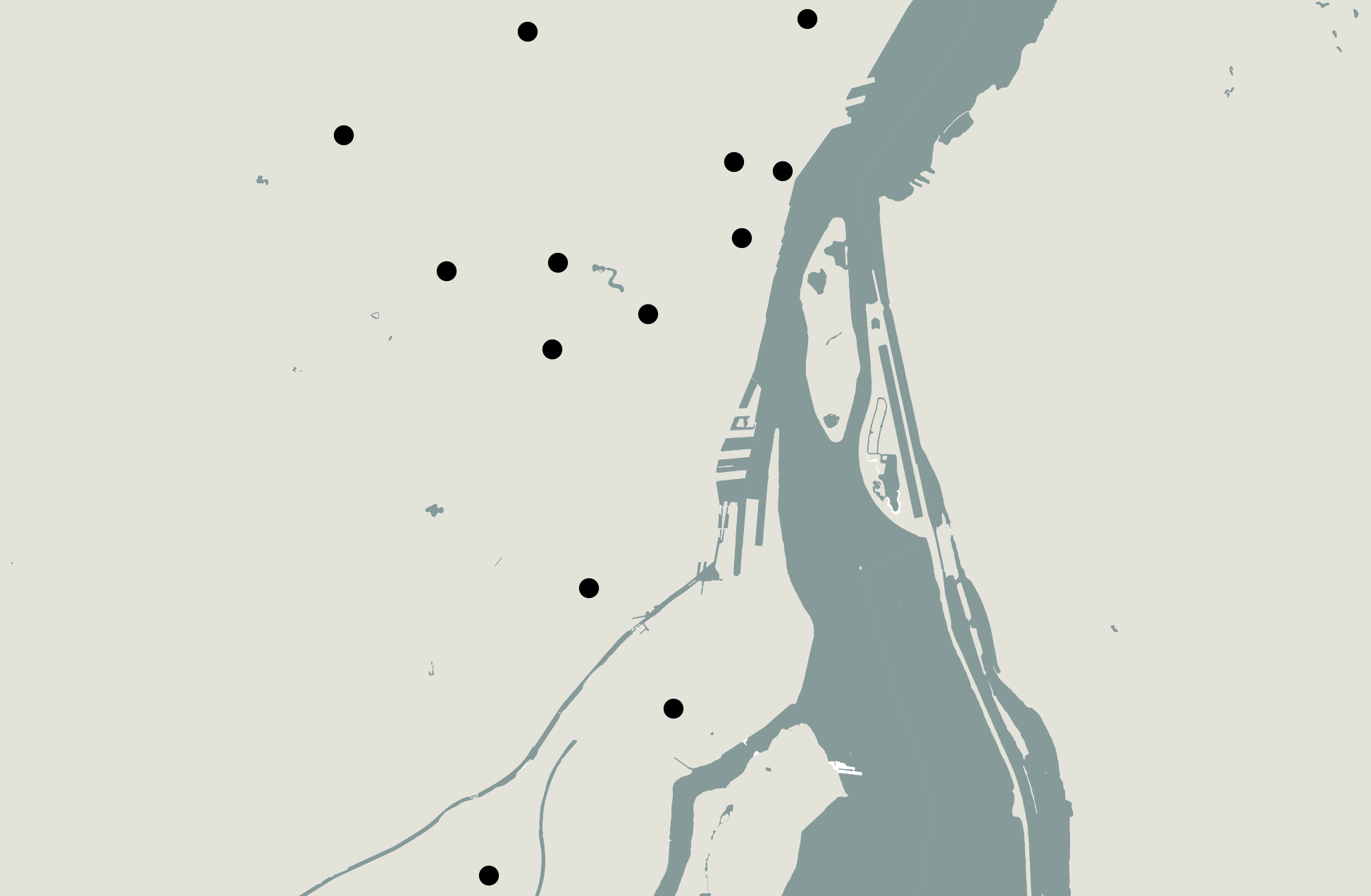
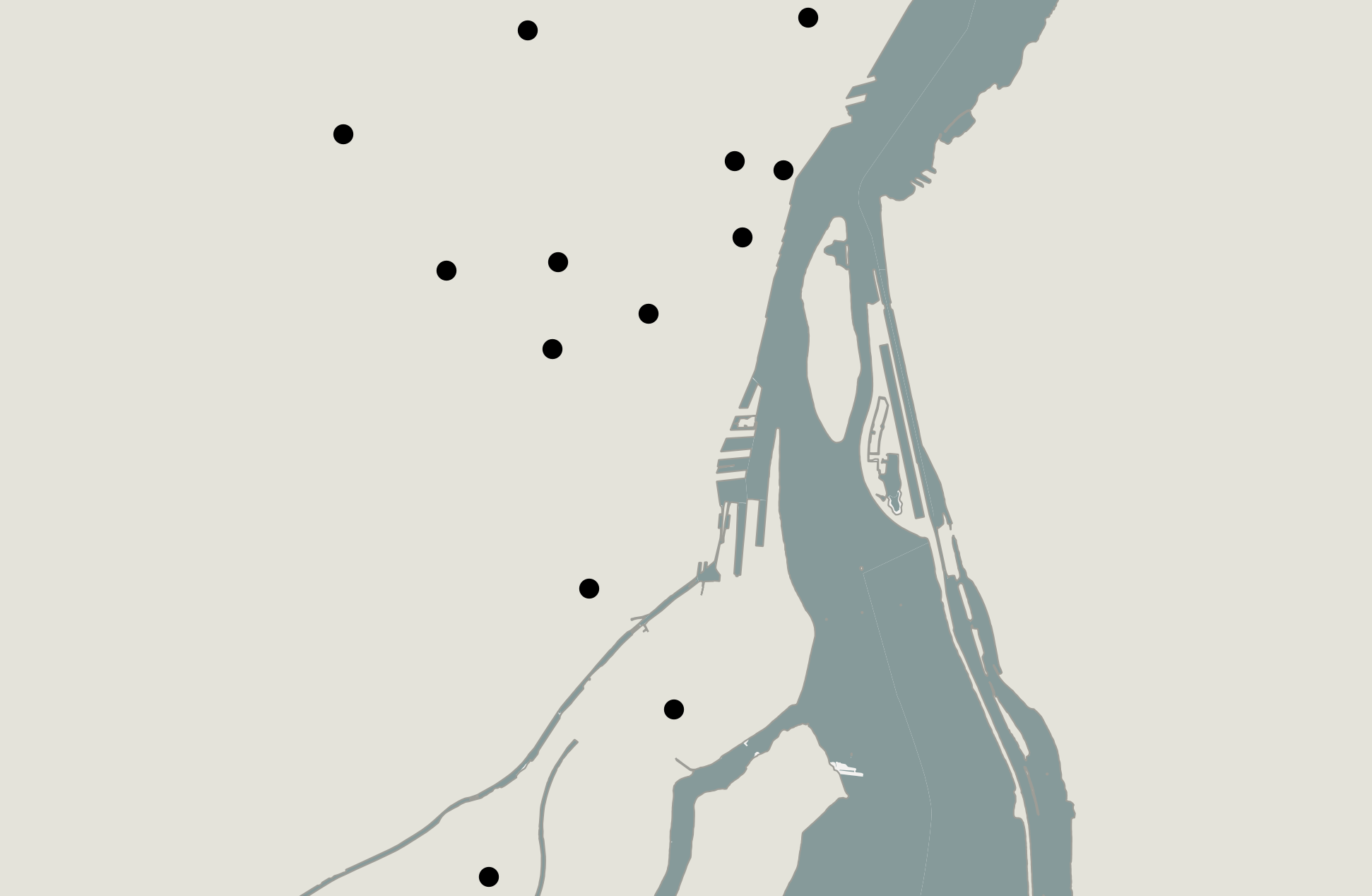
An outline brings something to your attention, adding crispness to form. To send elements to the background, consider removing their outlines. A light-colored outline against a darker foregrounded element will help it stand out and vice versa.
If both foreground and background are outlined, consider color matching by adding light-colored outlines to light objects, and dark outlines to darker objects (this looks really professional). Consider removing outlines from background layers, such as ocean, lakes, and countries. Consider adding a light outline to polygon features of all once color, or removing them all together if features are symbolized in a categorized manner. Keep in mind the color of an outline also impacts visual hierarchy.
Transparency
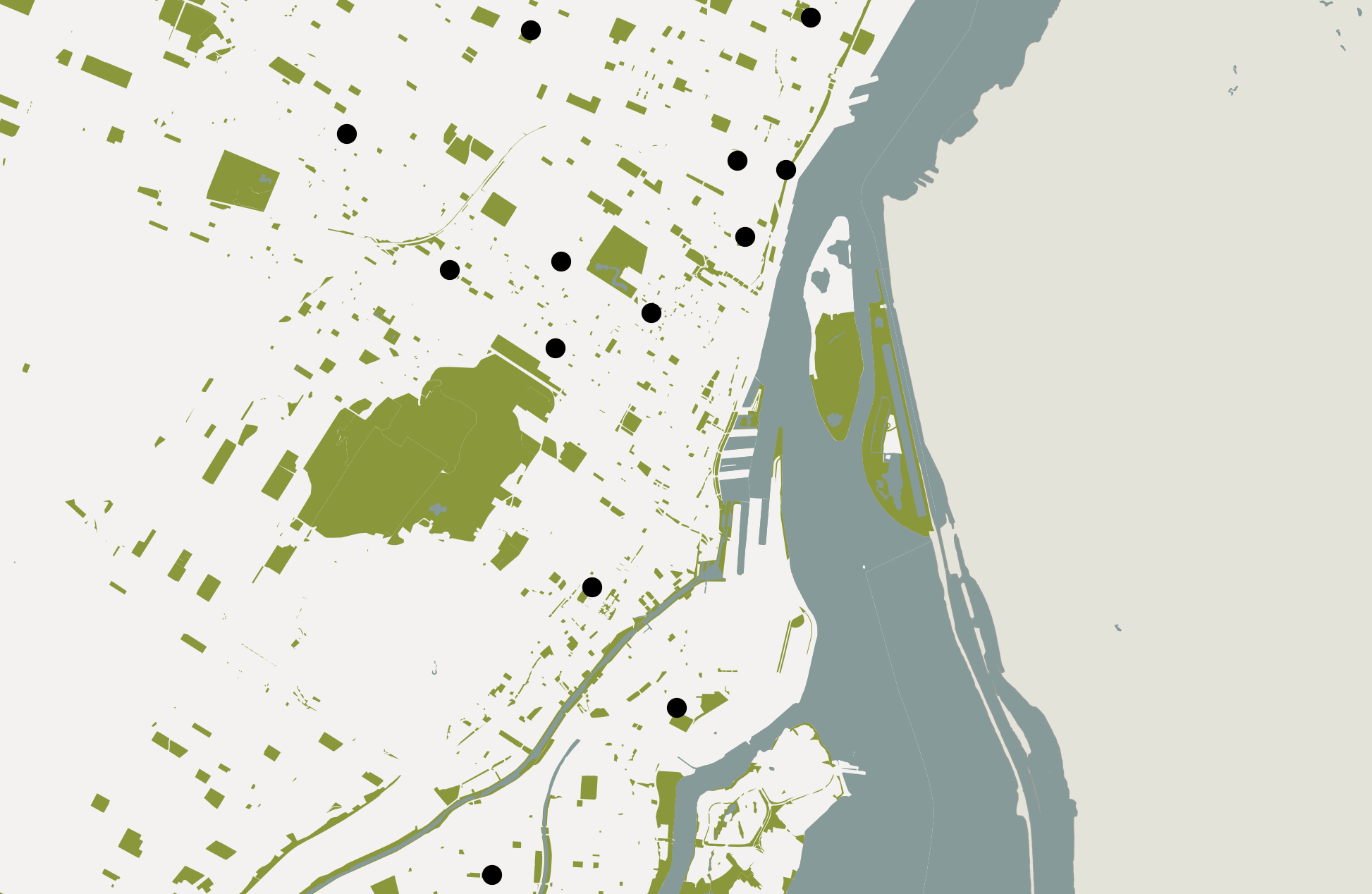
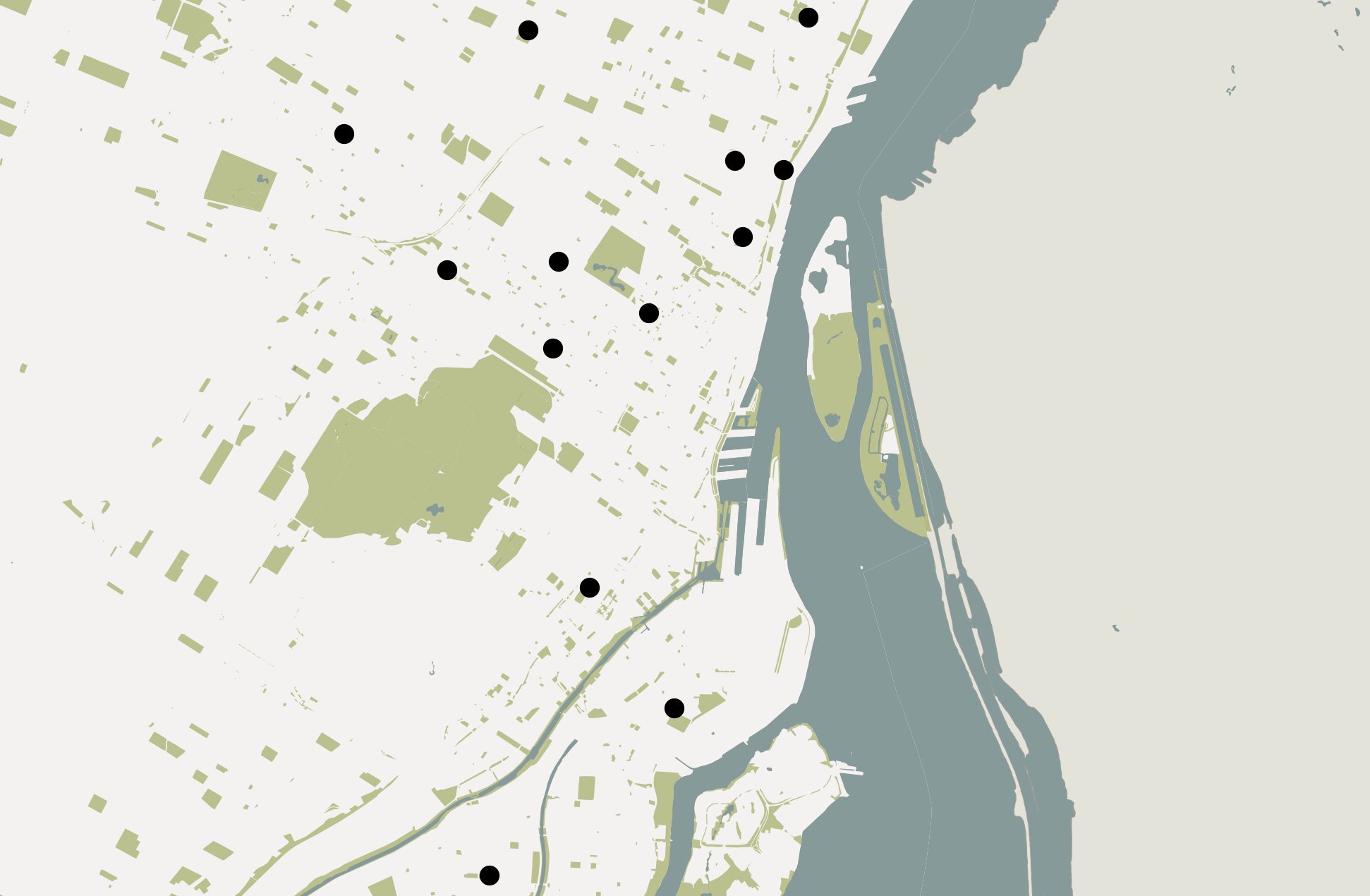
Transparency allows overlapping layers to be seen, as well as lightens the overall hue of a layer. Transparency helps elements fade into the background, like the backing of a legend or a north arrow. Transparency also serves to de-accentuate things like outlines and text buffers.
Practice
While there is more to Visual Hierarchy, that is enough to get you started. Take some time to change symbology of each layer with visual hierarchy in mind. And, catch up if you need.
Be sure your map is zoomed-in to public-baths when you practice.
Other resources for Visual Hierarchy
- GIS&T Body of Knowledge on Visual Hierarchy
- Axis Maps guide to Lettering
- Book chapter on Cartographic design process
- The Routledge Handbook of Mapping and Cartography (Search it via UBC Library for free online access as UBC student, staff, or faculty)
- CartoGIS Lesson on Visual Hierarchy
- Color in cartographic symbolization
- 9 Tips for Visual Hierarchy
Loading last updated date...