Labelling
Another Layer Property useful to know is Labels. The Labels Property allows you to add labels to a layer based on a specified attribute value. You can turn off the labels at any time by returning to a layer’s properties, or by right-clicking the layer and clicking “Show Labels” again.
Add labels to Public Baths
Open the Layer Properties for public-baths. Navigate to Labels just beneath Symbology.
Change No Labels to Single Labels.
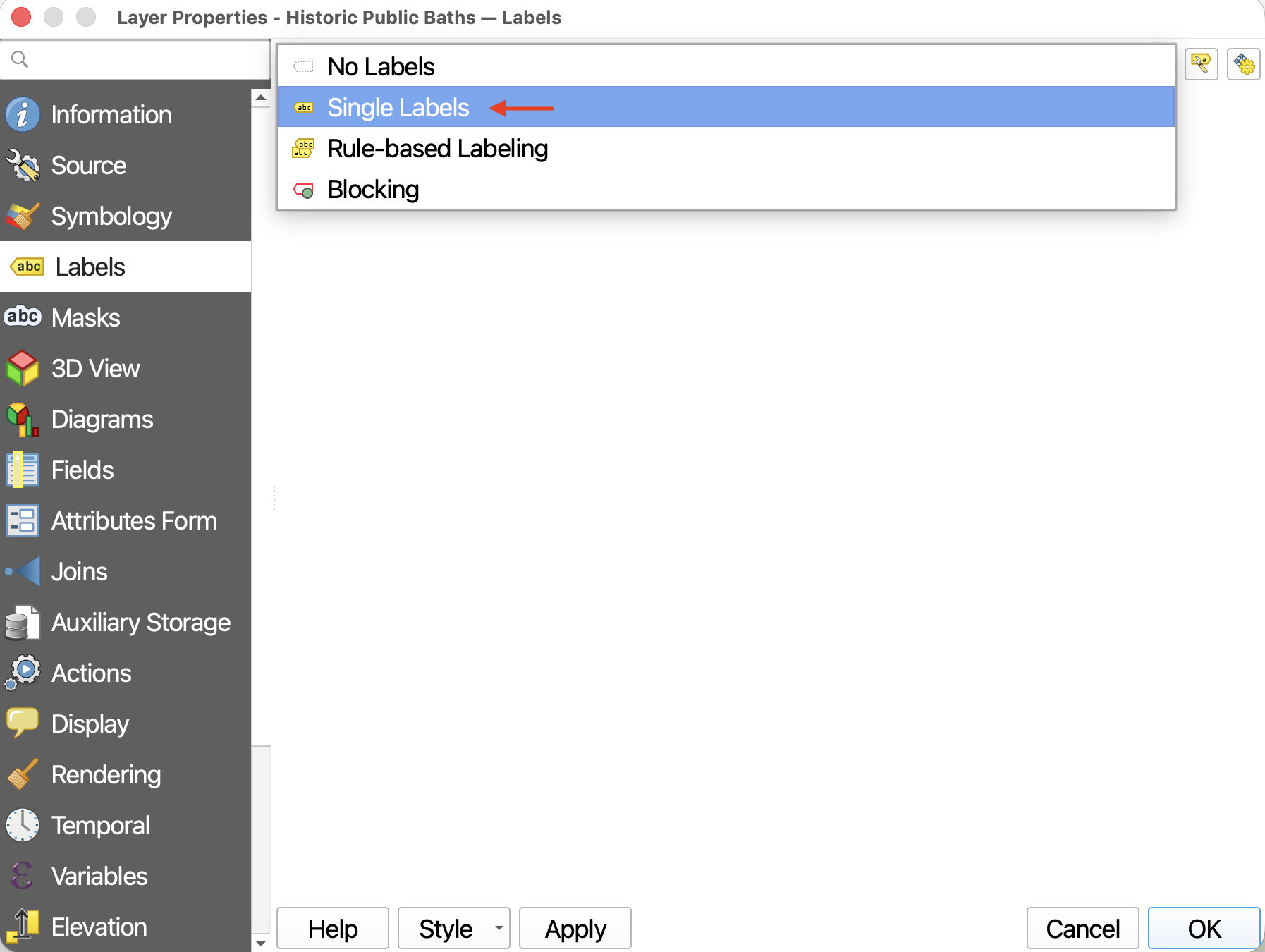
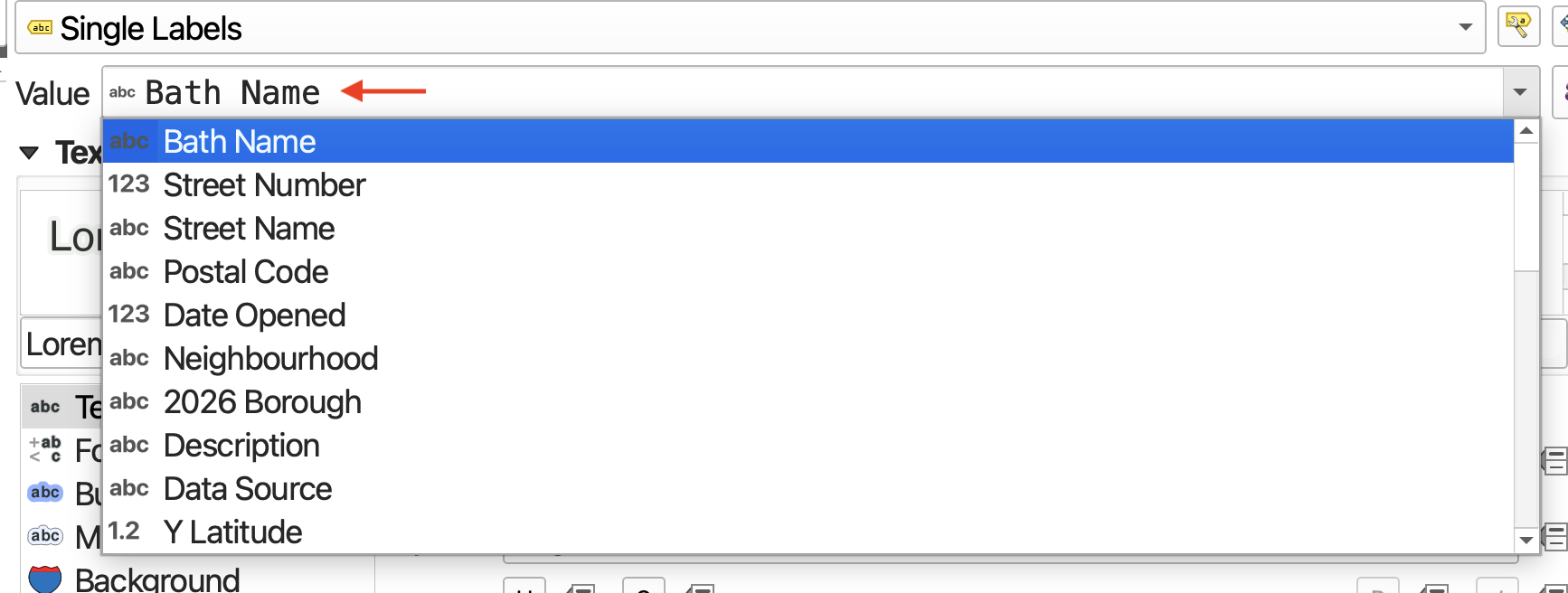
Set the Value to
Bath Name. This way the labels will appear as each bath’s name.
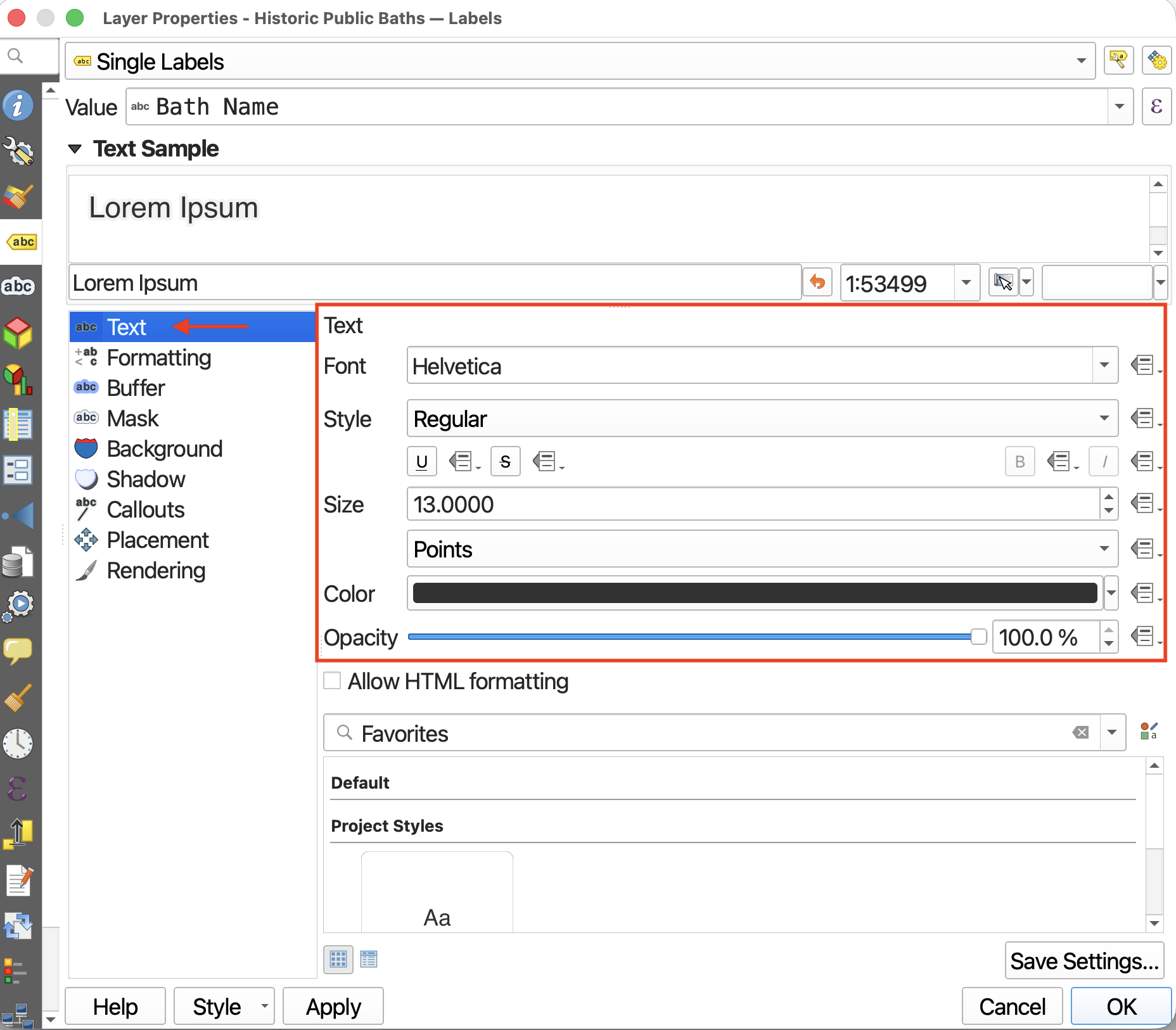
You can customize your labels quite a bit.
First, you can change the size, font, color, and opacity (or transparency) of your text.
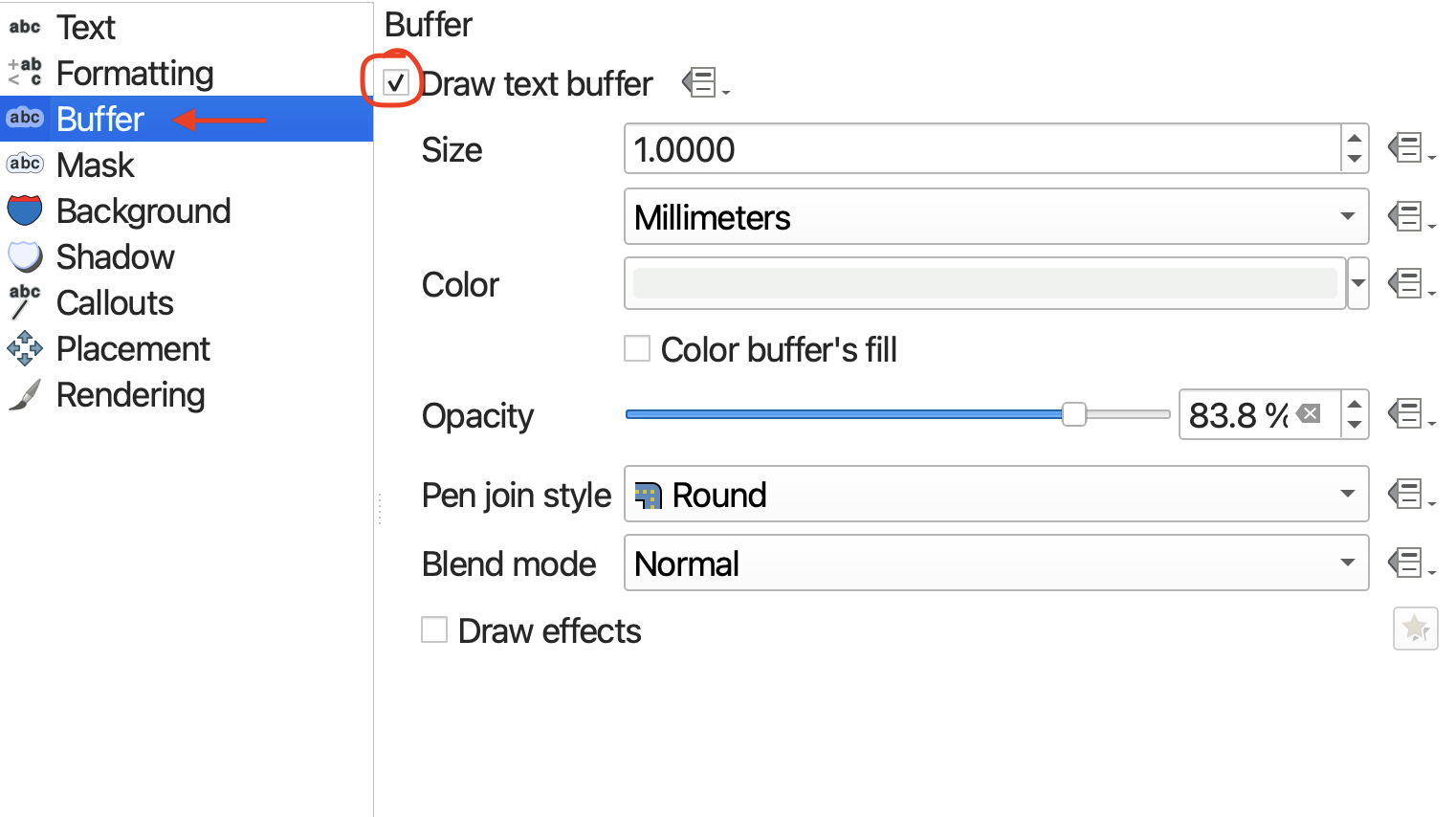
If your text is difficult to read, you can add a buffer to highlight it from the background. Considering visual hierarchy, it can be a good idea to use a semi-transparent color that’s already predominant in the map’s background to highlight your text.
Finally, you can adjust the labels’ placement around a point by going down to Placement. This is most useful when labelling polygons.
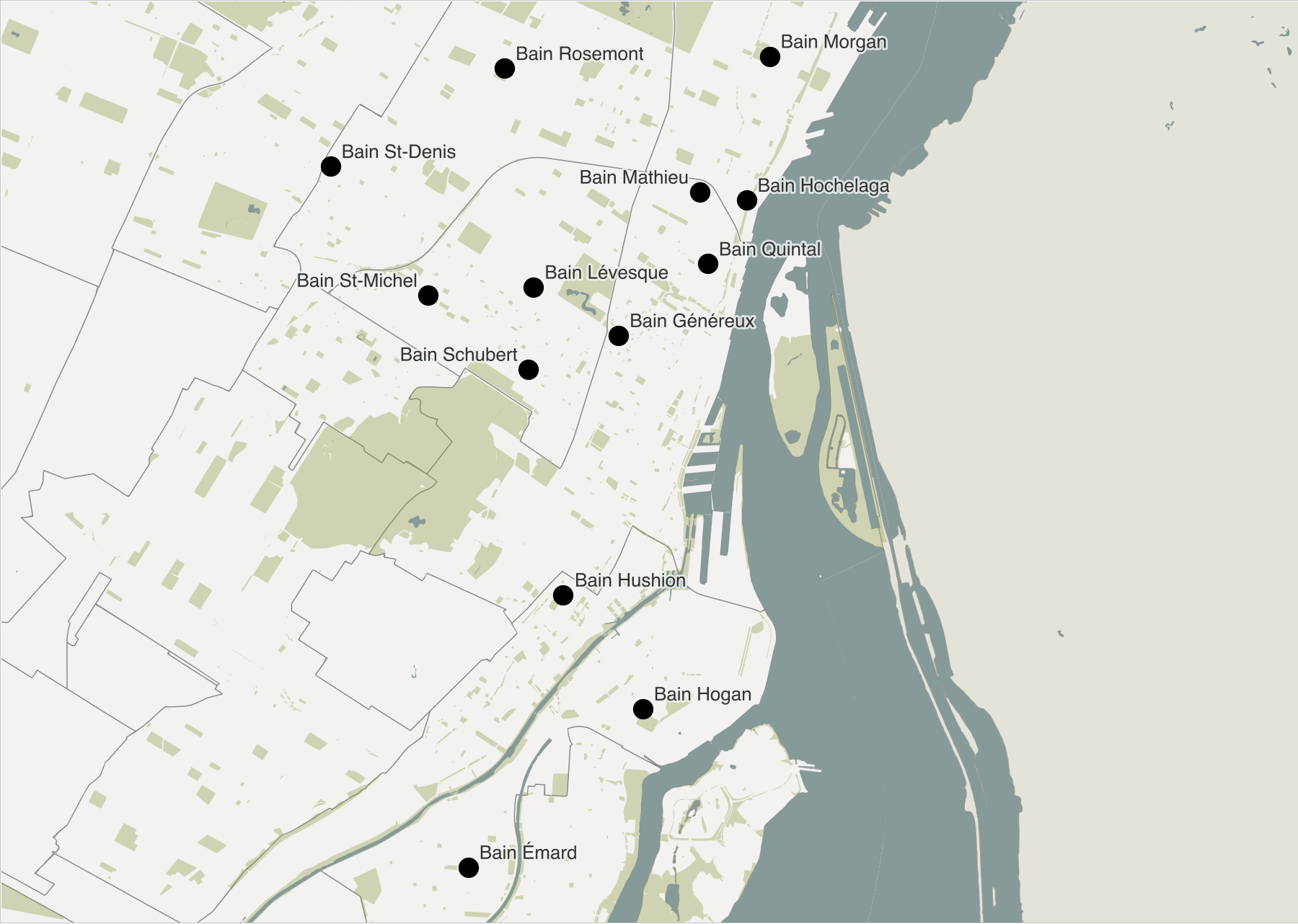
While more comprehensive design work on your map can be managed in an illustration software like Adobe Illustrator or its free and open-source alternate, Inkscape, with some time and patience, a great deal of customization can be done right within QGIS.
Loading last updated date...